In-App View
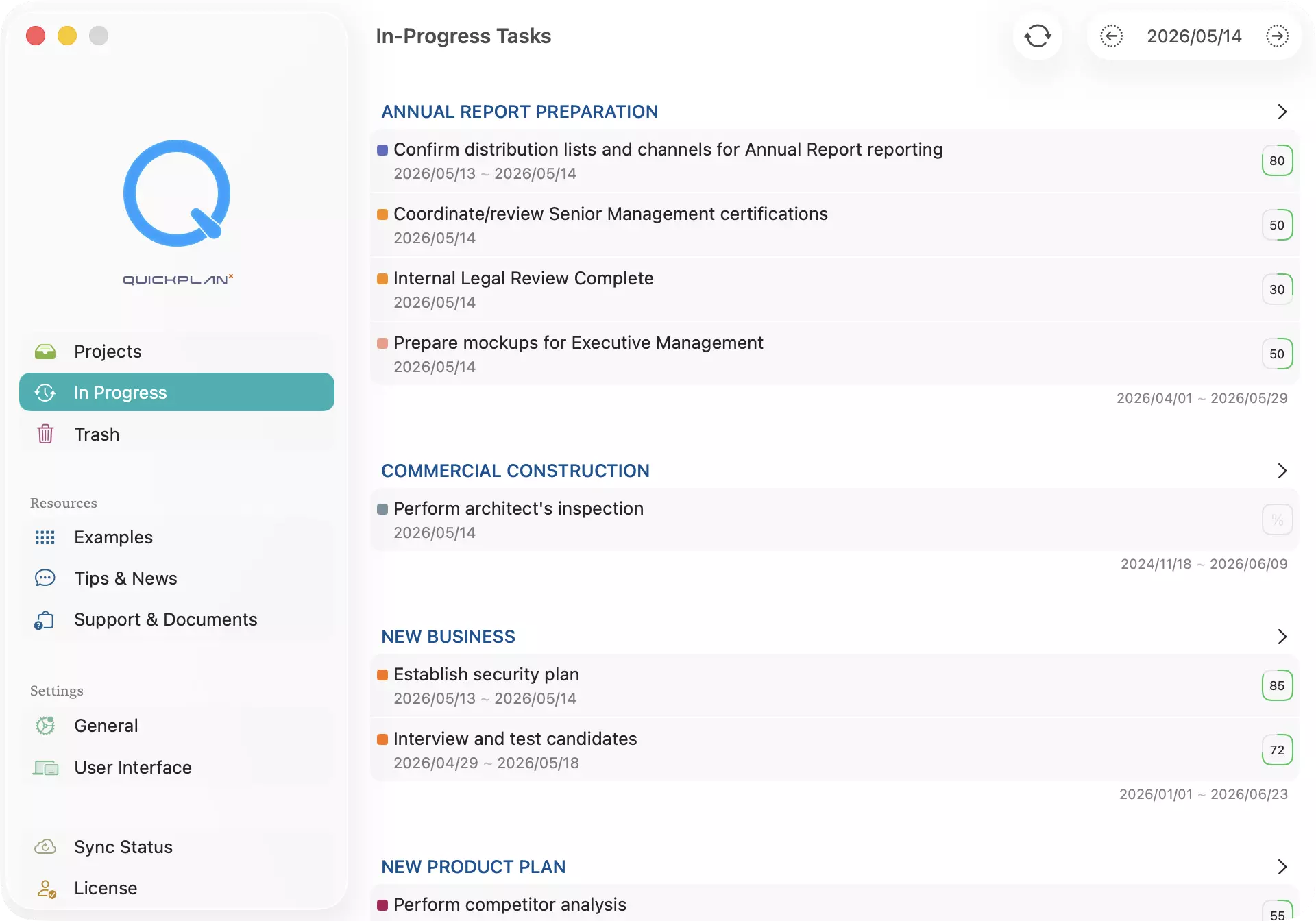
The In-Progress view in the QuickPlanX welcome window shows all tasks in progress on a given day — today by default, or any date you choose. It gives you a quick, consolidated overview of your current work across all projects.
Open the In-Progress View
Open the welcome window, then navigate to the In-Progress tab:
- Mac / iPad: select it from the sidebar.
- iPhone: tap it in the tab bar at the bottom.
Tasks are grouped by project, so you can see at a glance what is active and where it belongs.
Browse Other Dates
To see tasks due on a different day, tap the left arrow or right arrow buttons in the toolbar to move backward or forward in time.
Refresh the View
The In-Progress view does not update automatically when you make changes inside a project. After editing tasks, tap the Refresh button in the toolbar — or tap the date label in the toolbar and choose Refresh — to reload the latest data.
Jump to a Project or Task
Tap a task to open that task directly in its project. QuickPlanX will launch the project and scroll straight to the selected task.