Upgrading from Legacy QuickPlan Apps to QuickPlanX
QuickPlanX is a redesigned app that replaces the legacy QuickPlan apps, offering an iCloud-based solution for creating and managing project plans. This guide will help you upgrade your existing projects from the legacy QuickPlan apps to QuickPlanX.
The legacy QuickPlan apps are document-based, storing each project individually as a file with the .qpp extension. QuickPlanX natively supports importing these files and converting them into the new online project format.

macOS
Locating Your .qpp Files
On macOS, your legacy QuickPlan files (.qpp) are stored locally on your device. If you are unsure of their location, use Finder to search for them by filename or by the .qpp extension.
(Due to macOS App Store sandboxing restrictions, QuickPlanX cannot automatically scan your entire system to locate .qpp files. You will need to locate and select them manually.)
Importing .qpp Files
Follow these steps to import your legacy QuickPlan files:

- Launch QuickPlanX on your Mac.
- Click the "+" icon in the welcome window and select "Import from QuickPlan file".
- Browse to the location of your
.qppfile and select it. - Wait for the import process to complete. Once finished, the imported plan will appear as an icon in the "Projects" view within the welcome window.
iOS
1. Bulk Migration
On iOS, legacy project plans listed in the home view are stored within the app's internal sandbox. QuickPlanX offers a convenient bulk migration feature to import these projects directly.
Prerequisites
Ensure that the latest version of the legacy QuickPlan app is installed and has been launched at least once. If you can see your projects in the legacy app's home view, they are ready for direct migration to QuickPlanX.
Migration Steps
To migrate your projects with ease:
- Launch QuickPlanX on your iPhone or iPad.
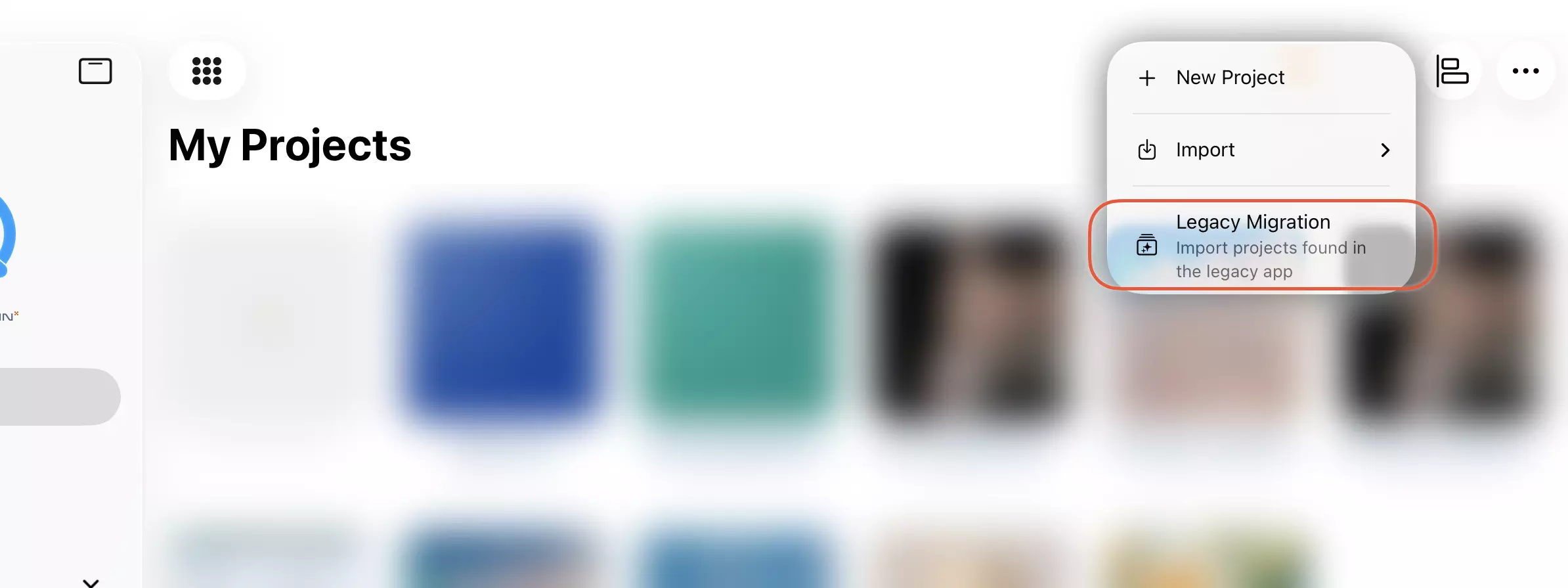
- Tap the "..." (More) button located on the right side of the toolbar in the welcome window.
- Select "Legacy Migration".
- Select one or more of the legacy projects you wish to import.
- Wait for the import process to complete. Your projects will appear in the "Projects" view upon completion.
2. Manual Import of .qpp Files
QuickPlanX also support to import .qpp files created by the legacy QuickPlan apps.
Locating Files
Use the Files app to locate your .qpp files, whether they are in iCloud Drive or saved locally on your device.
-
Legacy QuickPlan apps support accessing
.qppfiles stored in iCloud Drive, in the case if you using this feature, the .qpp files will be available on the iCloud Drive app and you can access them in the Files app. -
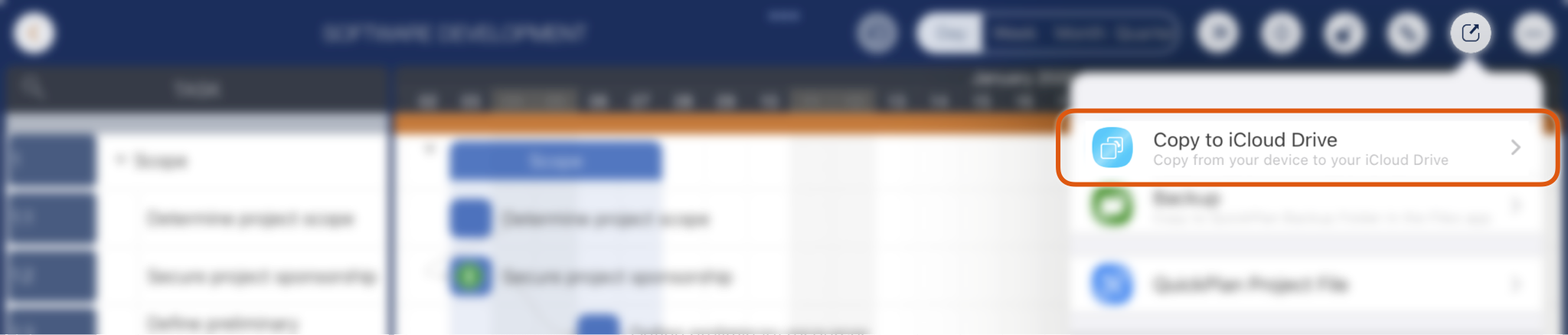
Additionally, the Legacy QuickPlan apps support to manually export projects as
.qppfiles and save them to your device. In this case, the file's location is specified by you, and you can access them in the Files app.
Import Steps
- Launch QuickPlanX on your iPhone or iPad.
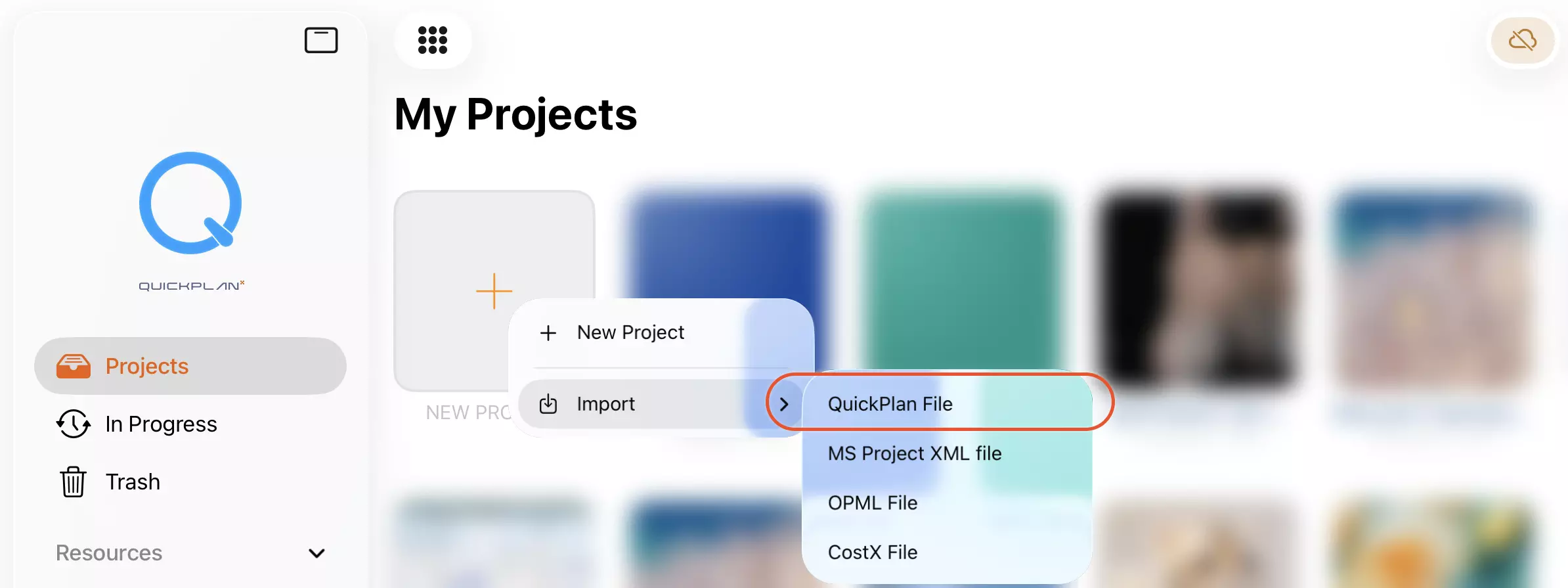
- Tap the "+" icon in the welcome window and select "Import from QuickPlan file".
- Browse and select the
.qppfile you wish to import. - Wait for the import to finish. The imported project plan will appear in the "Projects" view.