iCalendar (ICS) Export
QuickPlanX enables you to export your project tasks into an iCalendar (.ics) file. This allows you to view your project schedule in various calendar applications, such as Apple Calendar, Google Calendar, and Microsoft Outlook, providing a clear overview of your tasks and deadlines alongside your other commitments.
Exporting to iCalendar (ICS)
You can export either the entire project or just a specific branch (a task group and its sub-tasks) to an ICS file.
Exporting the Entire Project
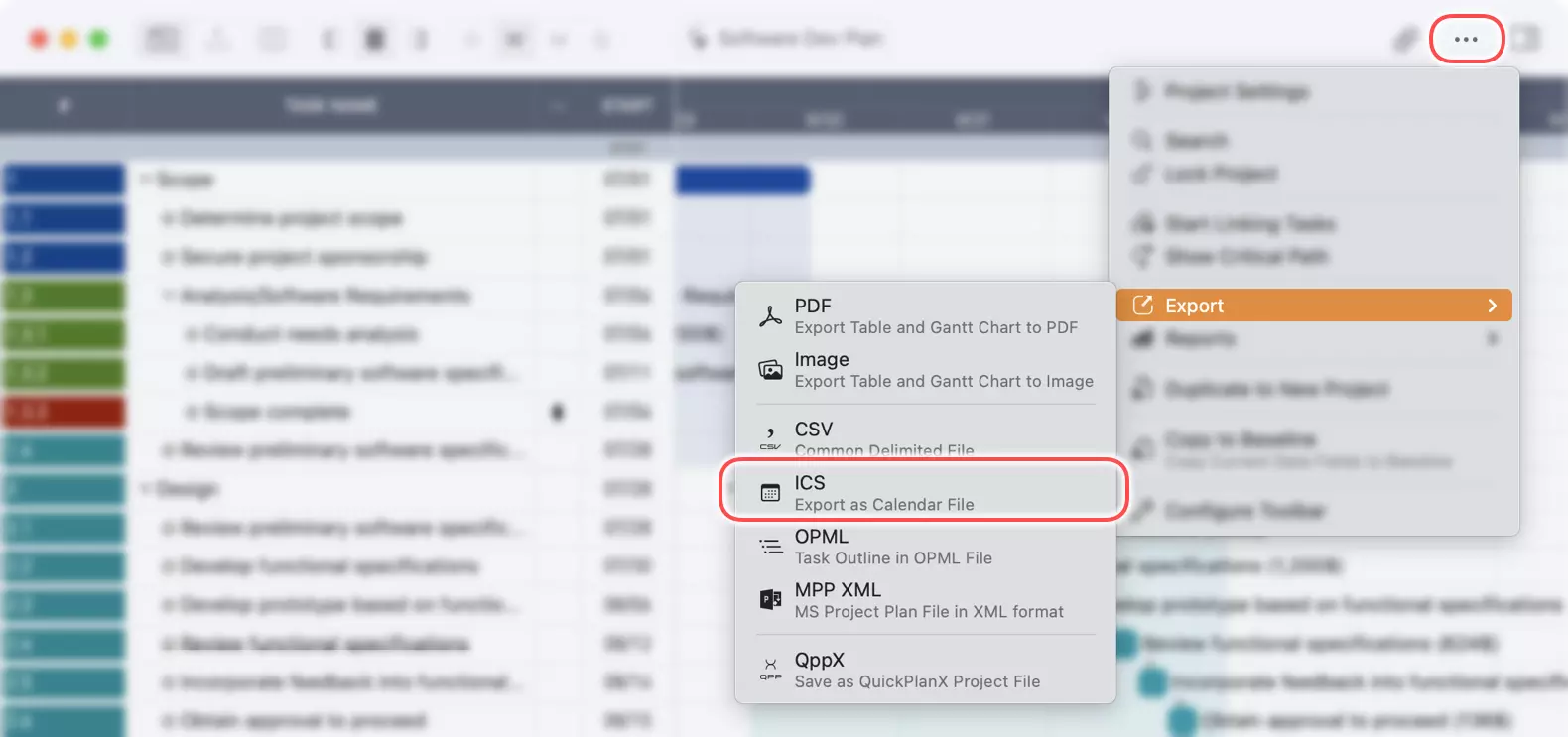
- From your project window, click the
···button in the toolbar. - Select
Export→ICSfrom the menu.
Exporting a Specific Branch
To export only a part of your project, you can select a specific task group.
On macOS
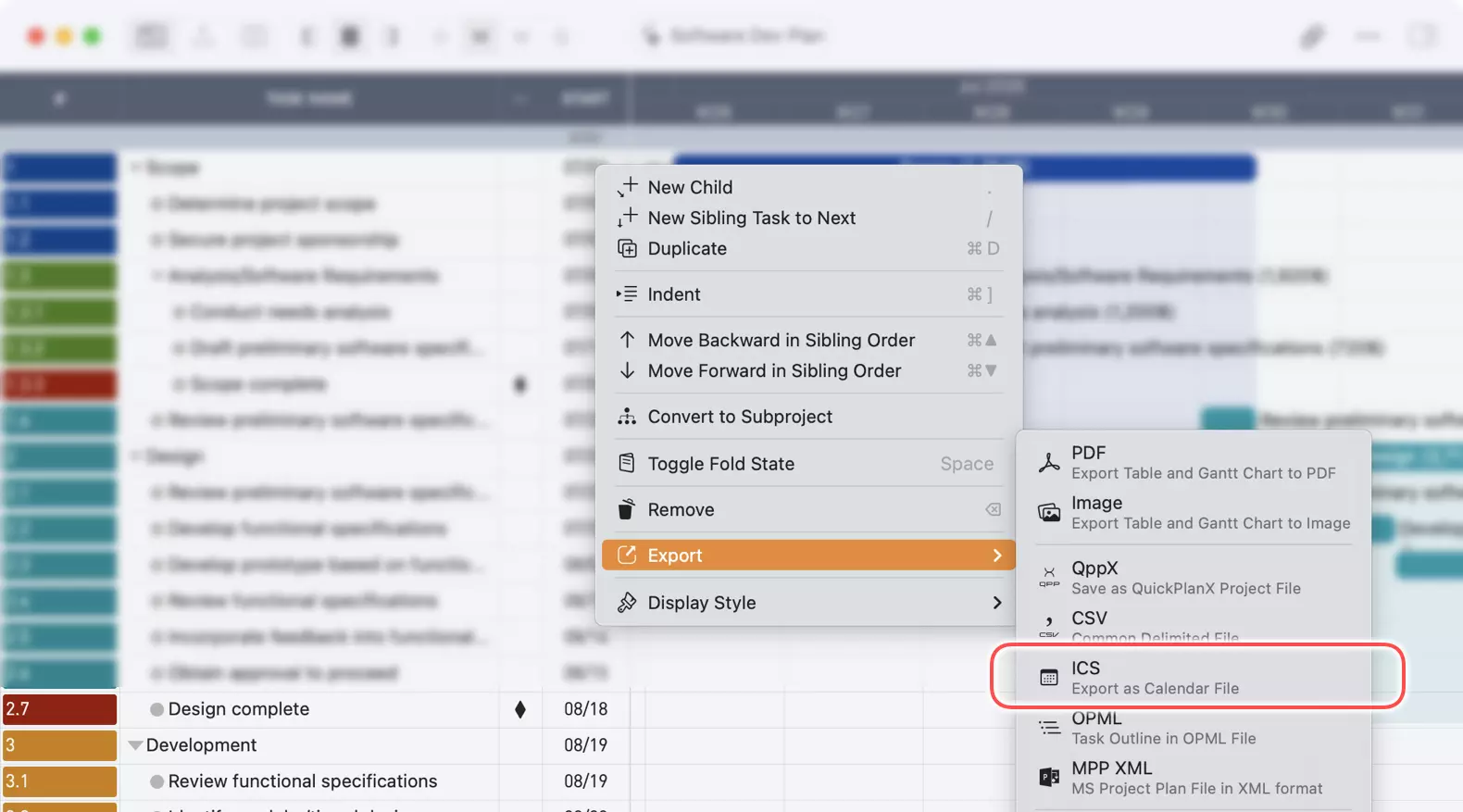
- In the outline view, right-click (or Ctrl-click) on the task group you wish to export.
- Choose
Export→ICSfrom the context menu.
This will export only the selected task group and all of its sub-tasks.
On iOS/iPadOS
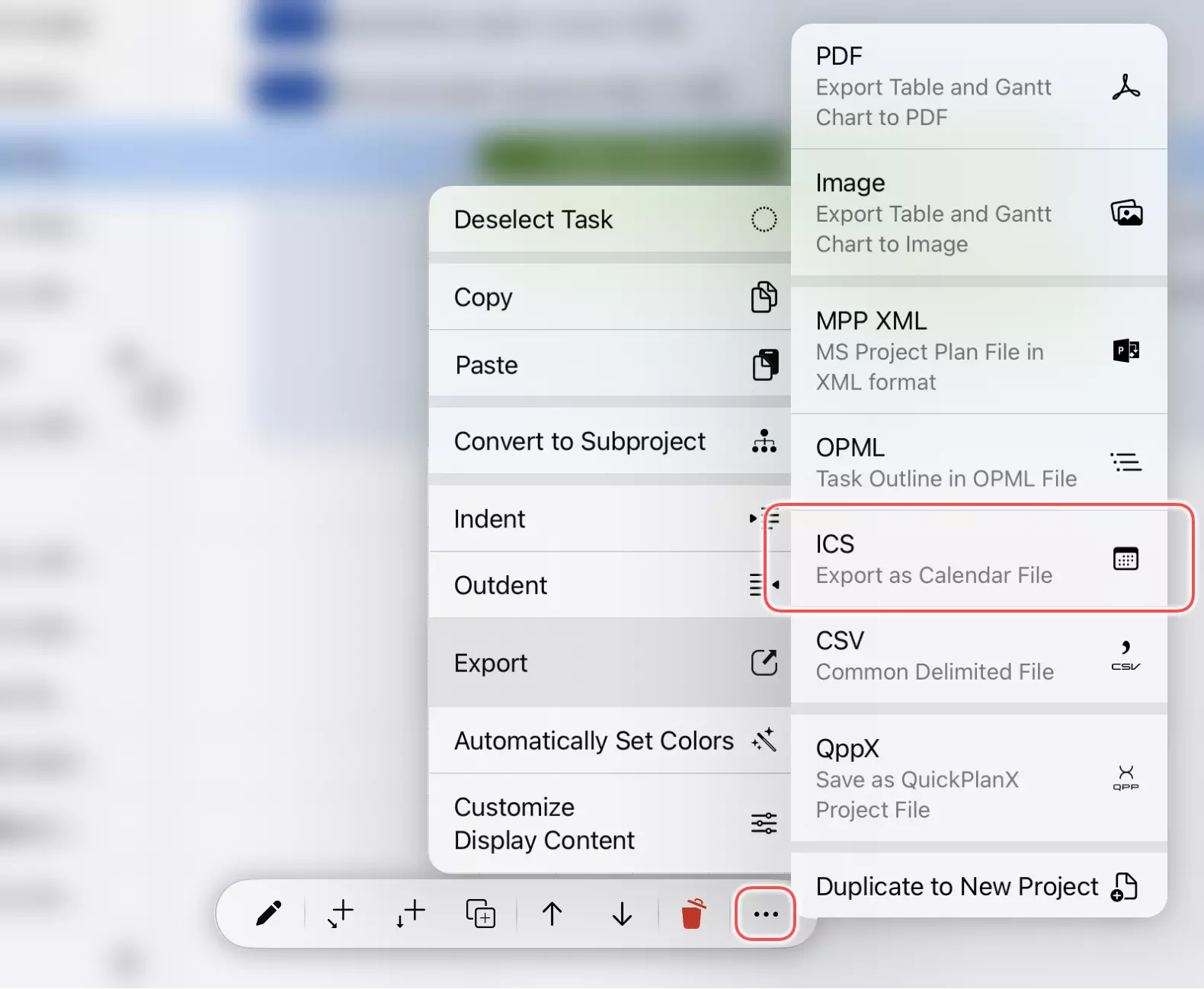
- In the outline view, tap to select the task group you want to export.
- Tap the
···button on the bottom toolbar to open the menu. - Select
Export→ICS.
This action exports the chosen task group and its sub-tasks.
Saving the Export
After choosing the export option, QuickPlanX will generate the .ics file and ask you to save it to your preferred location.

Using the ICS File
You can open the exported .ics file in most calendar applications. Typically, you can double-click the file on a desktop operating system to import it, or use the "Import" or "Add Calendar" function within your calendar app of choice.
When you import an ICS file, the tasks from your project will appear as events in your calendar.
What Information is Exported?
When you export to an iCalendar file, QuickPlanX includes the following information for each task:
- Task Name as the event title.
- Start and End Dates as the event's duration.
- Notes from the task are included in the event's description.
Project-specific details like task dependencies, resource assignments, and custom fields are not part of the standard iCalendar format and will not be included.
For detailed instructions on importing calendar files into Apple Calendar, see Apple's official guide: Import or subscribe to calendars in Calendar on Mac.
A Note on Usage
While exporting to iCalendar is a convenient way to visualize your schedule, we recommend using QuickPlanX's built-in features, the In-Progress view and widgets for tracking daily progress. As a specialized project management tool, QuickPlanX offers more detailed control and information than a standard calendar application. For more on this, see our article on project scheduling vs. calendar apps.
Updates
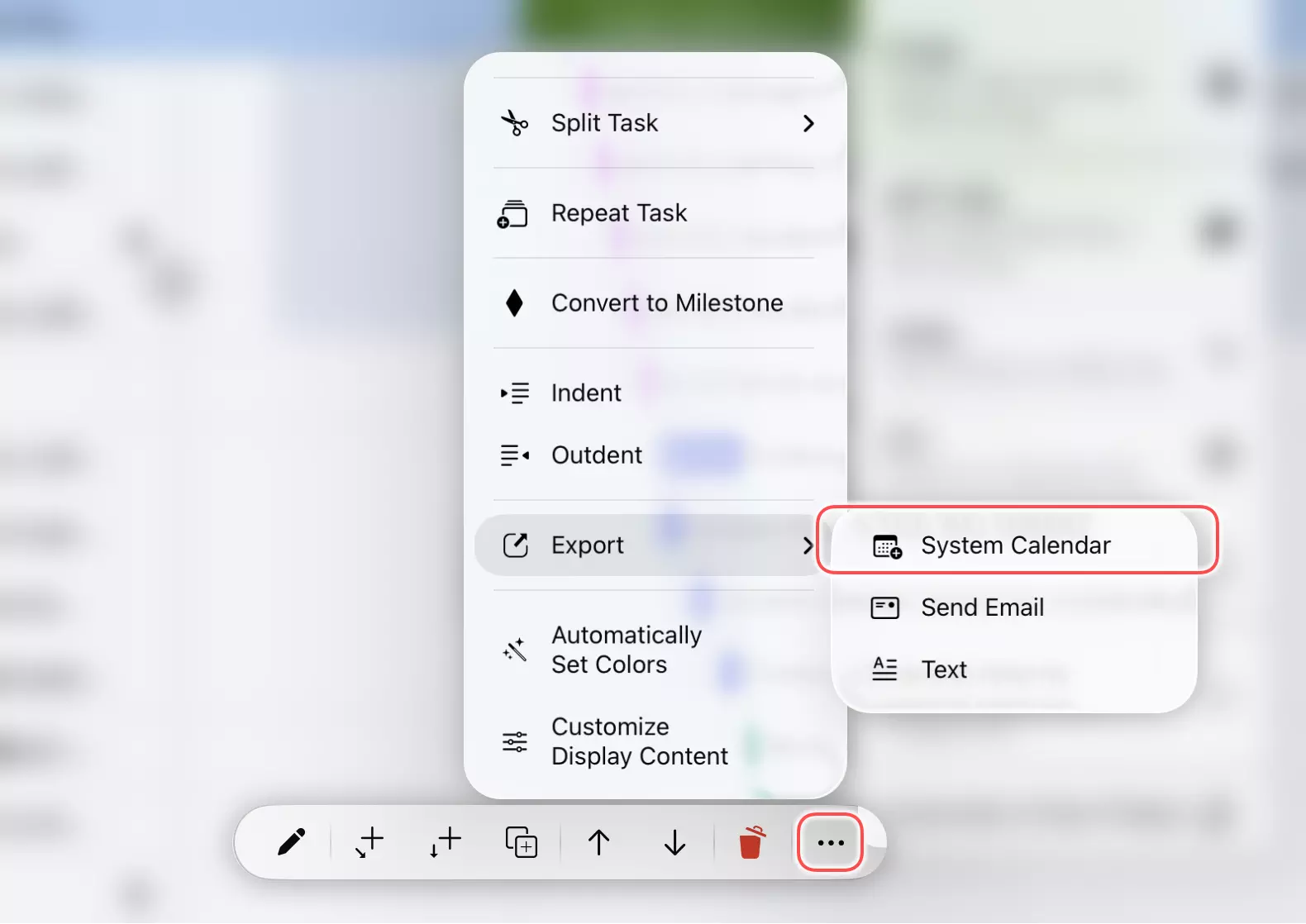
System Calendar Event (v4.0)
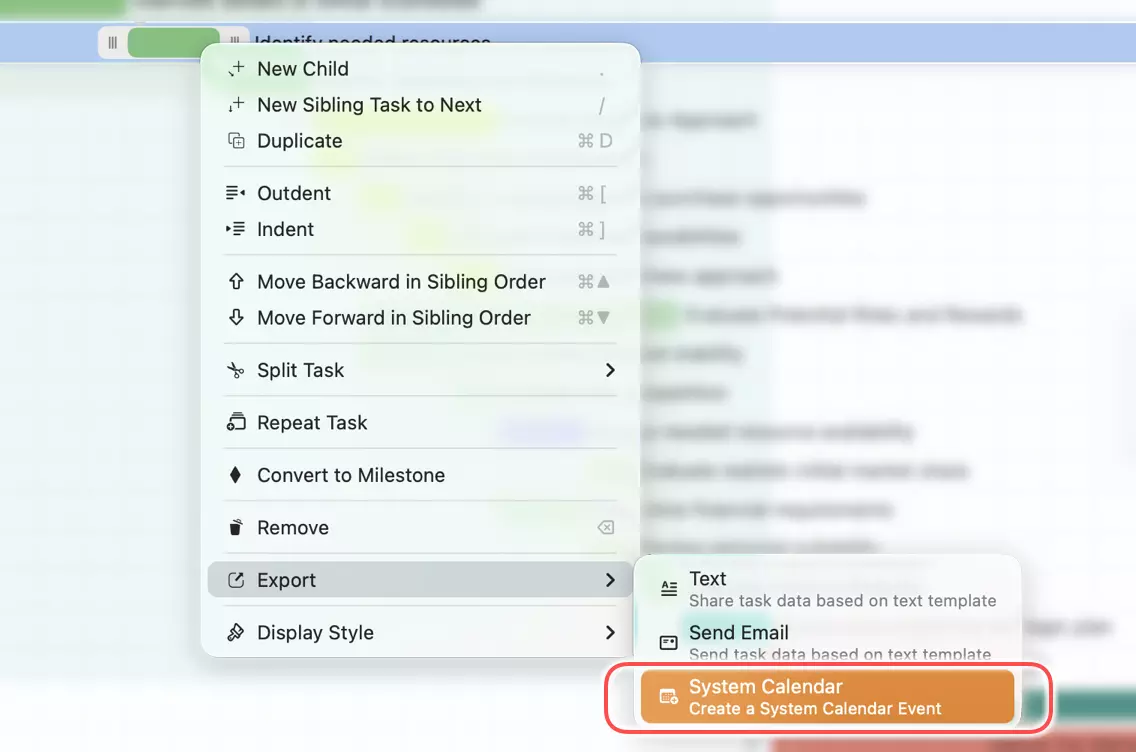
QuickPlanX 4.0 adds a System Calendar action that creates a one-time all-day event in the device's built-in Calendar app directly from a selected leaf task — no file export needed.
QuickPlanX uses the task name as the event title, the task note as the event notes, and the task start and finish dates for the event duration. The event is saved to the default System Calendar configured on the device.
On first use, the system may prompt for calendar permission. QuickPlanX requests Add Events Only permission — it does not read your existing calendar data.
-
Menu on macOS
-
Menu on iOS/iPadOS
This creates a one-time copy, not a live link. If the task changes later, the calendar event will not update automatically. Use the action again only when you intentionally want a new event; QuickPlanX does not prevent duplicates.
Use this action for individual leaf tasks that need quick calendar visibility. For file-based sharing or importing into another calendar system, continue using .ics export.