Fields Customization
QuickPlanX task fields include core fields, customizable fields, and baseline fields. QuickPlanX lets you customize the fields that you use to create your project. You can change their visibility, titles, order, and other properties depending on the field type.
- Visibility: Choose the fields that you want to use for the project.
- Display title: Rename the fields to match your preferences.
- Display order: Arrange the fields in the order that you want them to appear.
- Display format, branch value policy, and other properties: Adjust the settings of the fields based on their type.
Entry
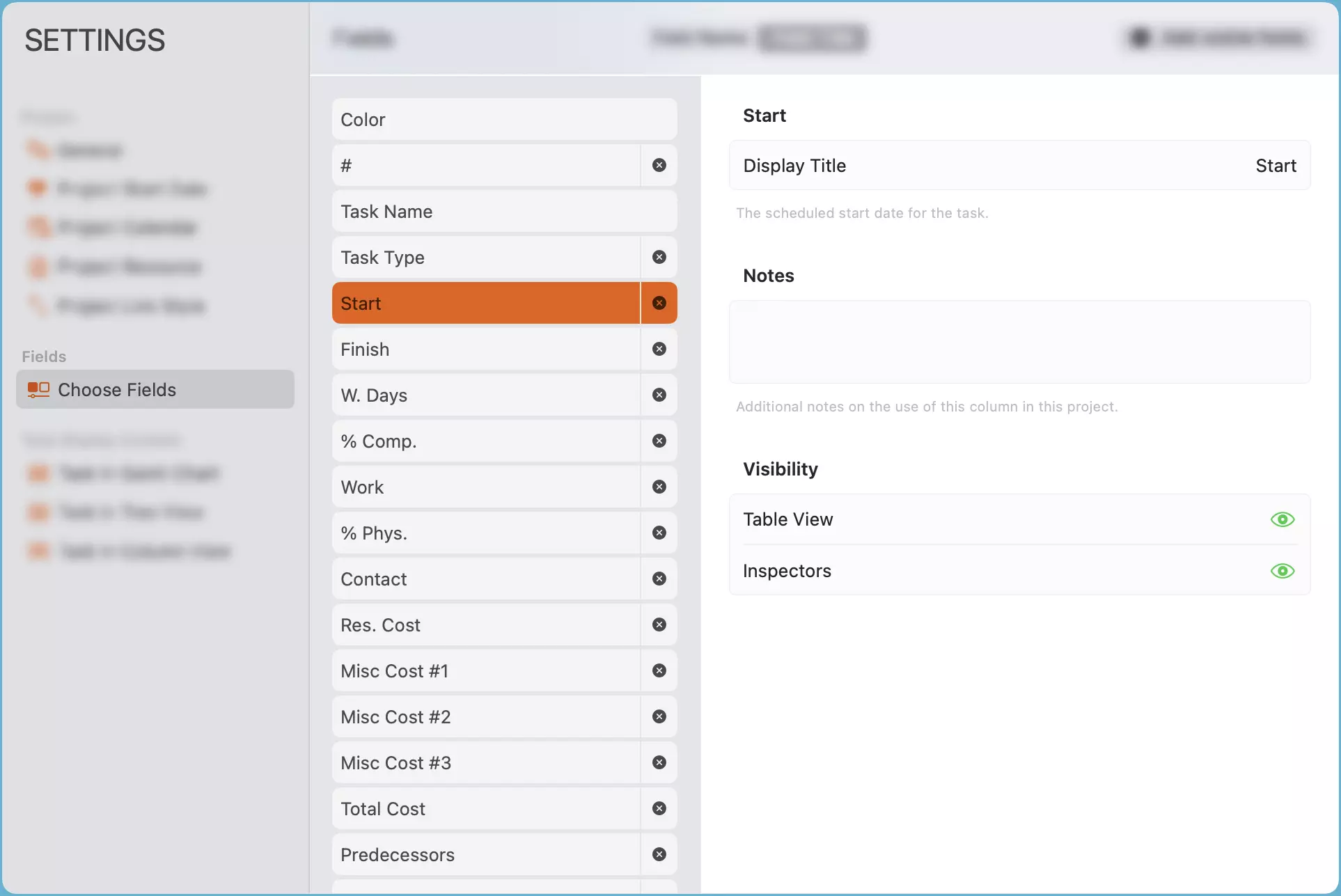
To access the fields customization, go to the Project Settings and tap the Choose Fields option.
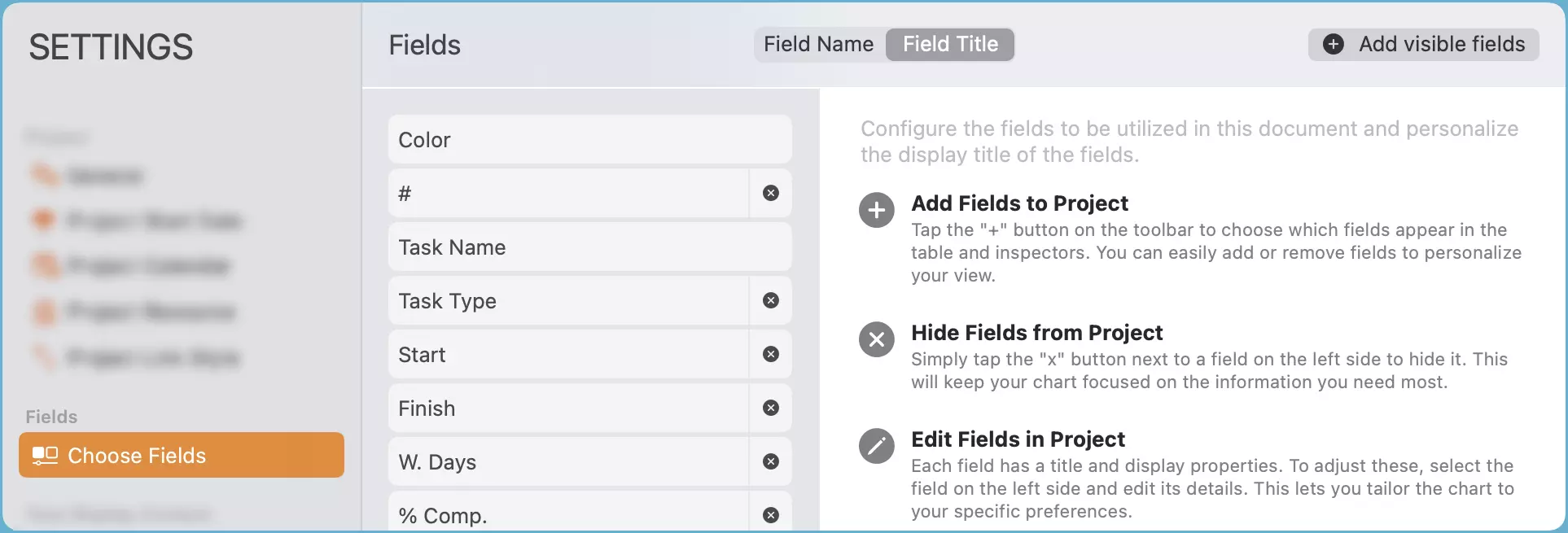
Choose Fields to Use
You don't have to use all the fields that QuickPlanX provides. You can select the fields that are relevant for your project. To add a field to the visible list, tap the Add Visible Fields button on the toolbar or below the list and pick the field that you want to use.
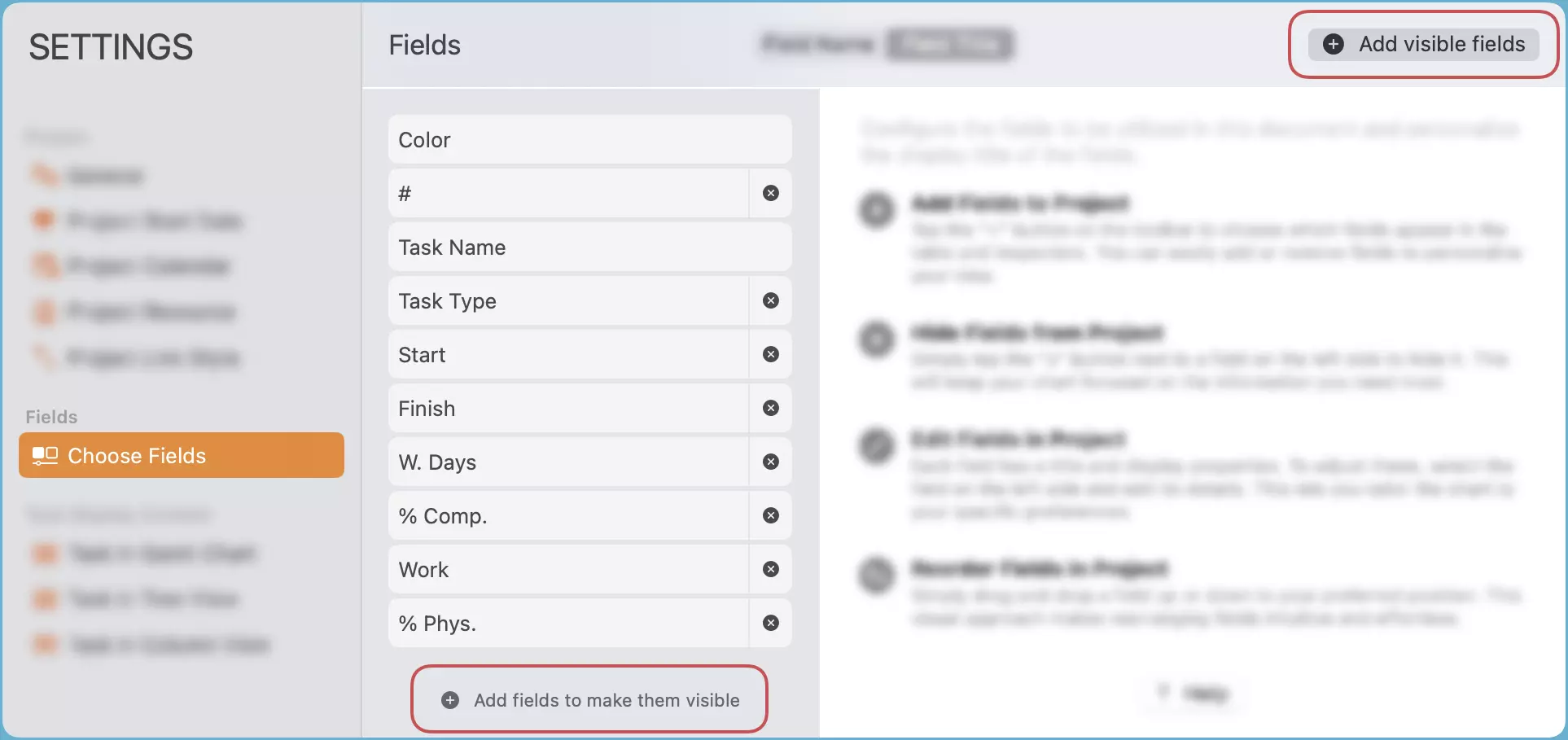
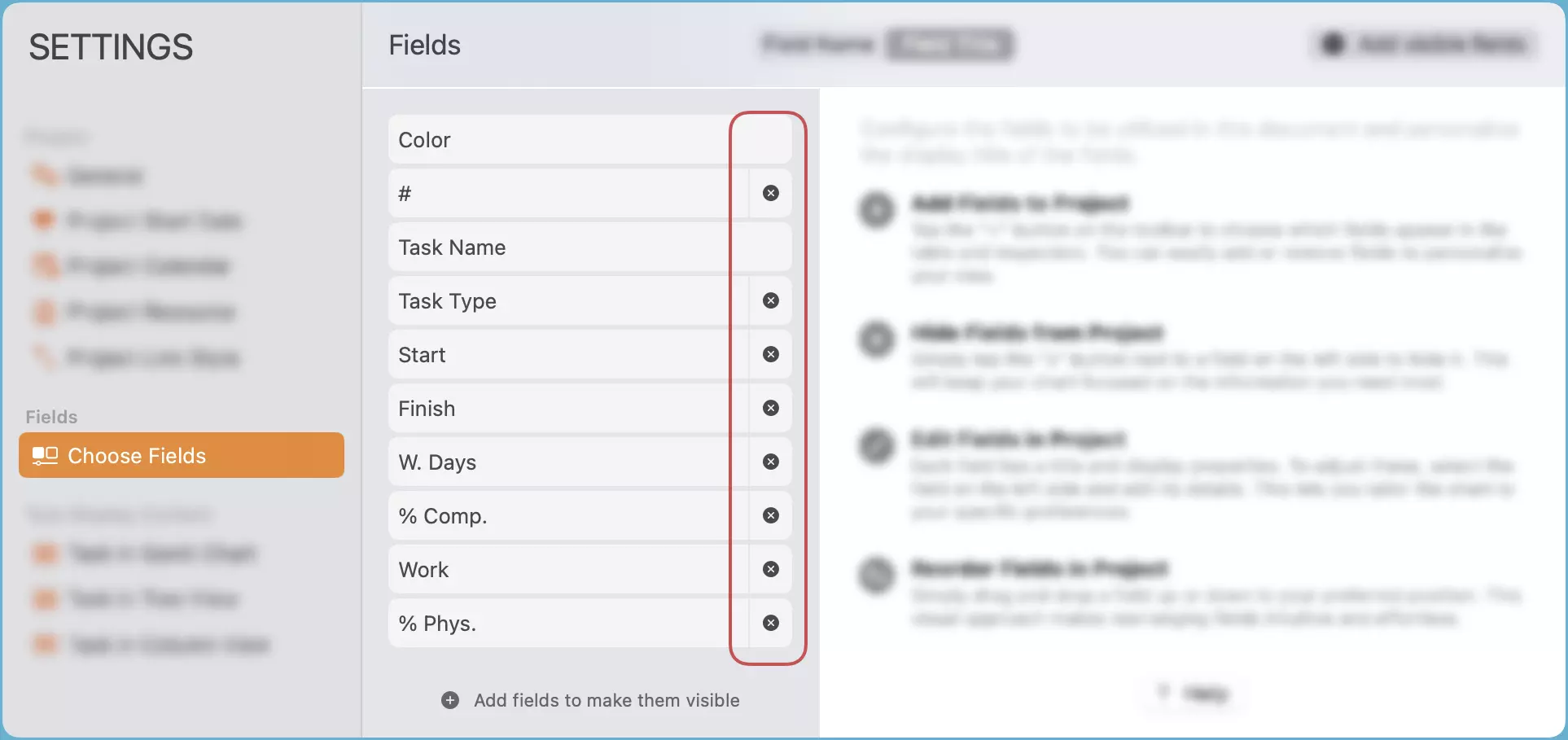
Hide Visible Fields
If you want to remove a field from the visible list, tap the x button next to the field name.
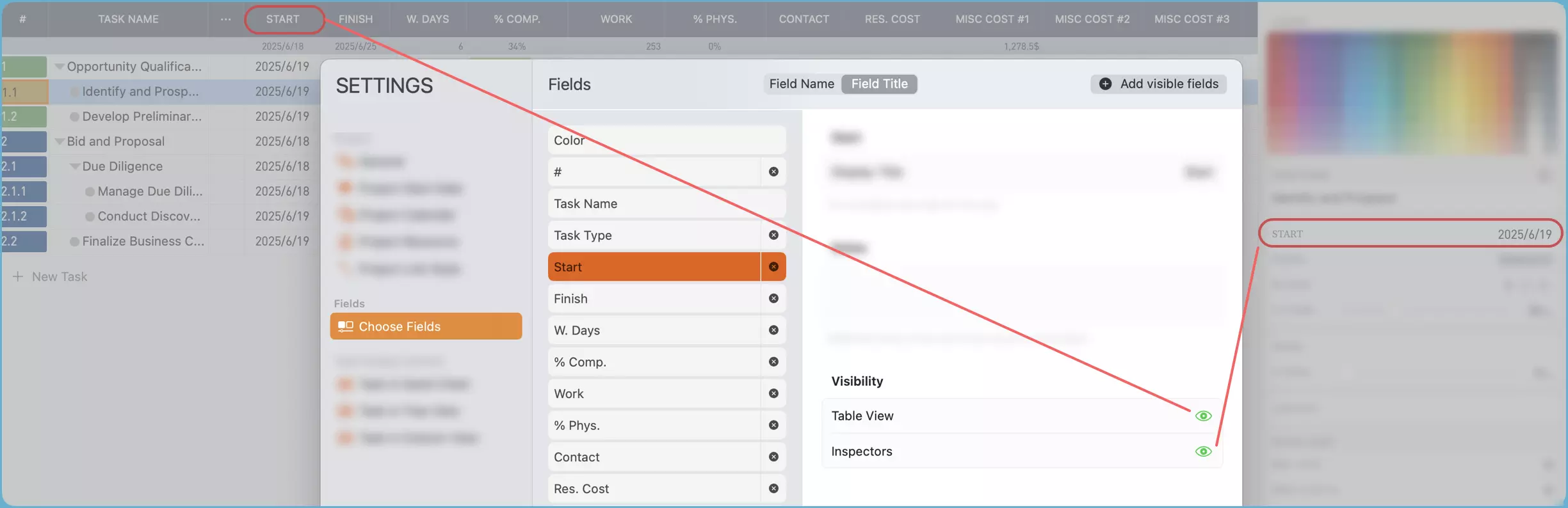
You can also set the visibility of a specific field separately on the list and on the inspector. To do this, select a field and toggle the switches for display on Table View and Inspector.
Edit Fields
To edit a field, select it and change its properties. You can edit the title, visibility, and other settings based on the field type. For example, the single-line text fields and boolean fields have more properties you can set.
Display Order
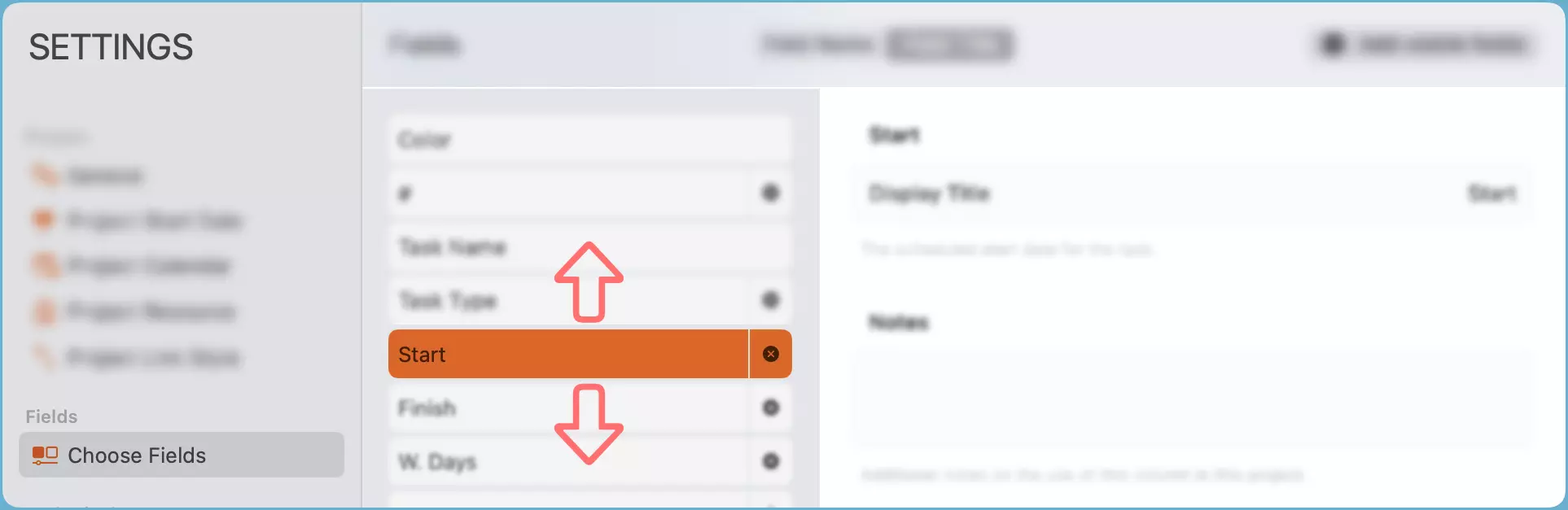
You can change the order of the fields on the list and on the inspector.
On Mac
Drag a field up or down to change its order.
On iPhone and iPad
Long-press on a field until it changes color, then drag it up or down to change its order.
Video
Watch the video below to see how to configure fields on Mac:
Watch the video below to see how to configure fields on iPad:
Notes
- The fields customization impacts the opened project. Different projects can have different settings.
- The display title does not impact the usage of the fields.