Timeline
The timeline sits at the top of the Gantt chart and controls its horizontal scale — the ratio between the screen width and the project duration. It lets you zoom in or out along the time axis without affecting the vertical layout.
Timeline View Style
The timeline displays two rows of cells to represent project dates. To keep the scale intuitive, QuickPlanX offers five view styles:
- Day. The top row shows the month or week; the bottom row shows individual days.
- Week. The top row shows the month; the bottom row shows weeks.
- Month. The top row shows the year; the bottom row shows months.
- Quarter. The top row shows the year; the bottom row shows quarters.
- Year. The top row shows the decade; the bottom row shows years. This style is only shown when the project spans a large enough duration; otherwise the selector for it is hidden by default.
View Styles Switcher
QuickPlanX provides a switcher that shows the active timeline view style. You can tap or click it to change styles directly. When you zoom in or out via the menu or a pinch gesture on the Gantt chart, the switcher updates automatically to reflect the new view style.
iOS
On iOS, the timeline view style switcher is located on the toolbar and appears as a menu button:

macOS
On macOS, the switcher appears by default as a vertical button bar to the right of the Gantt chart.
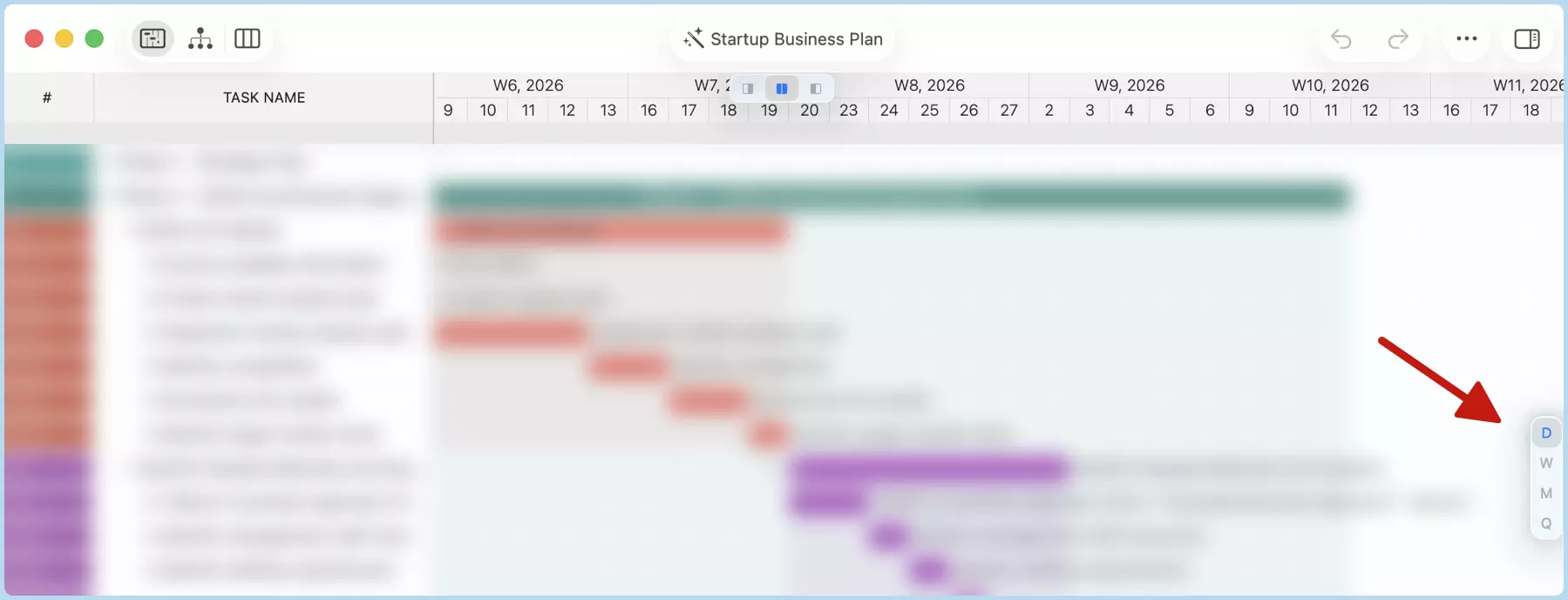
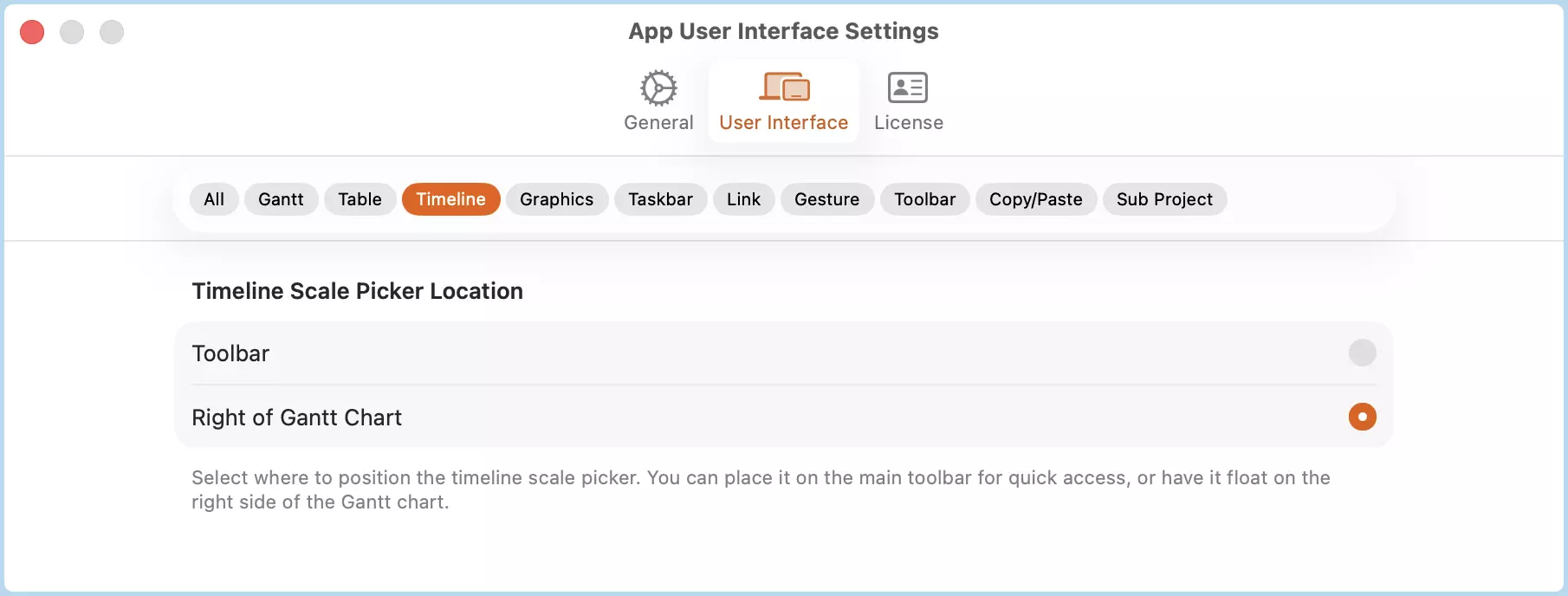
In the app appearance settings, you can change the switcher position to the toolbar instead.
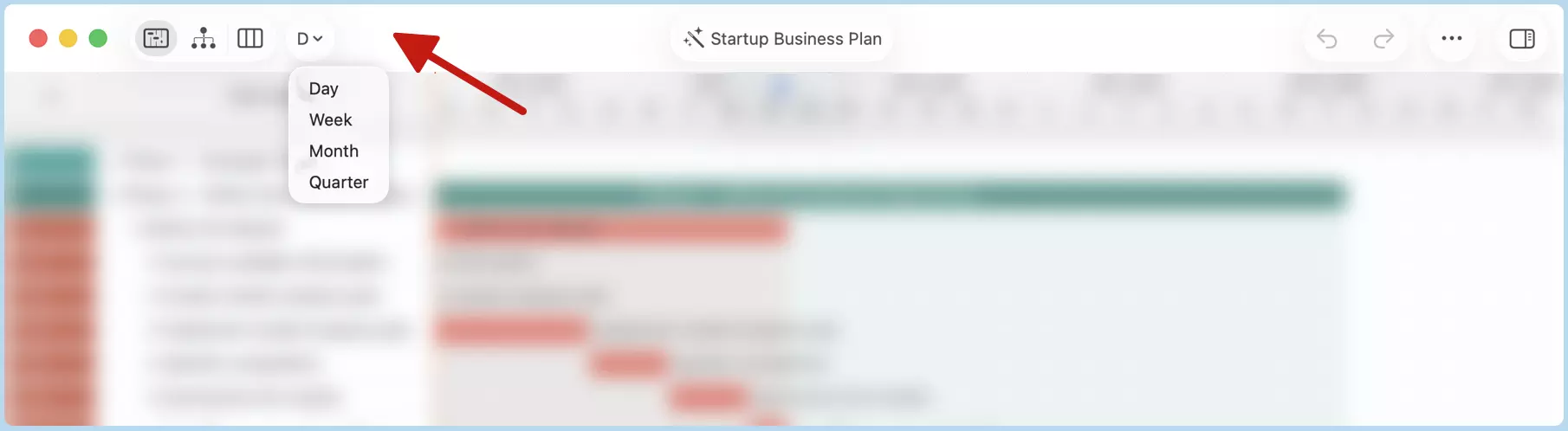
When placed on the toolbar, the switcher appears as a segmented control.
Customization
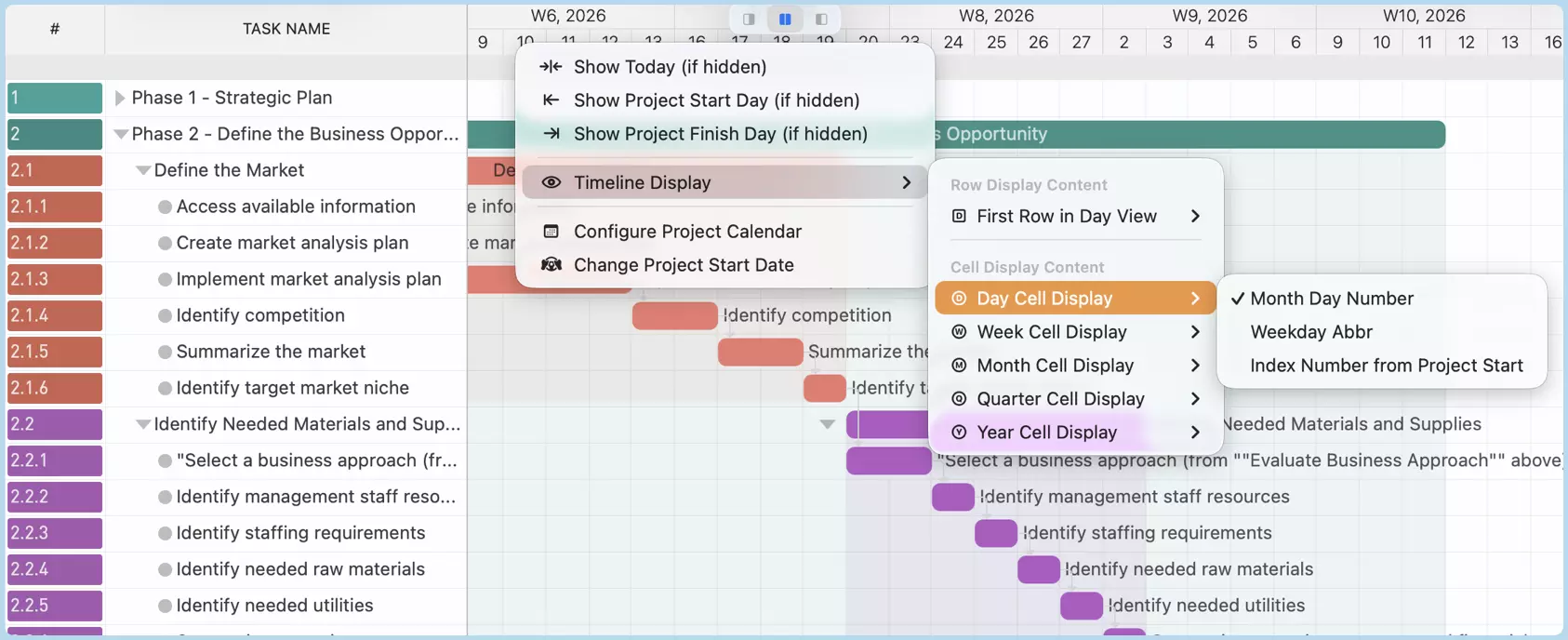
QuickPlanX provides options to customize what is displayed inside the timeline cells. To access these options, right-click the timeline on Mac, or long-press the timeline on iOS, and select from the context menu that appears.