My Projects
The "My Projects" view in the Welcome window shows all the projects you have created and stored on iCloud. QuickPlanX is an iCloud-based app that supports offline operation. Your updates to the projects will be synced to iCloud and to other devices of yours with the same Apple ID.
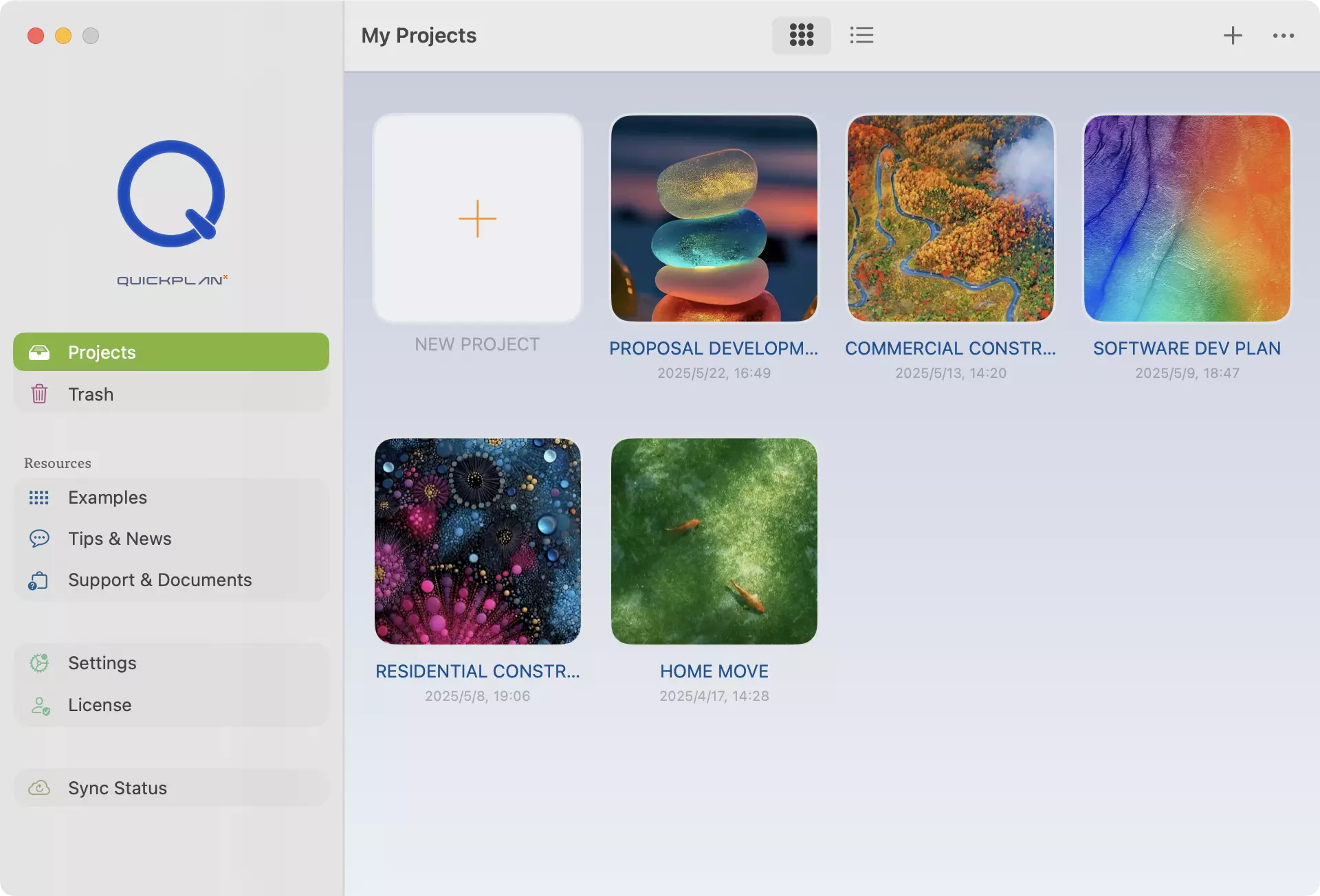
In the "My Projects" view, QuickPlanX provides the options to help you create new projects, update their profiles, and move them to the Trash.
List of Projects
The icons you see in the "My Projects" view in the welcome window are the online projects stored on iCloud.
QuickPlanX is not a document-based app. The icons listed in "My Projects" are not files on your device. They are the data stored online in the iCloud database. However, QuickPlanX allows you to export any of these projects as a file with the .quickplanx extension to your device, but you cannot open the file directly with QuickPlanX for backup and sharing. To open the file, you need to import it as a new project stored on iCloud.
Create
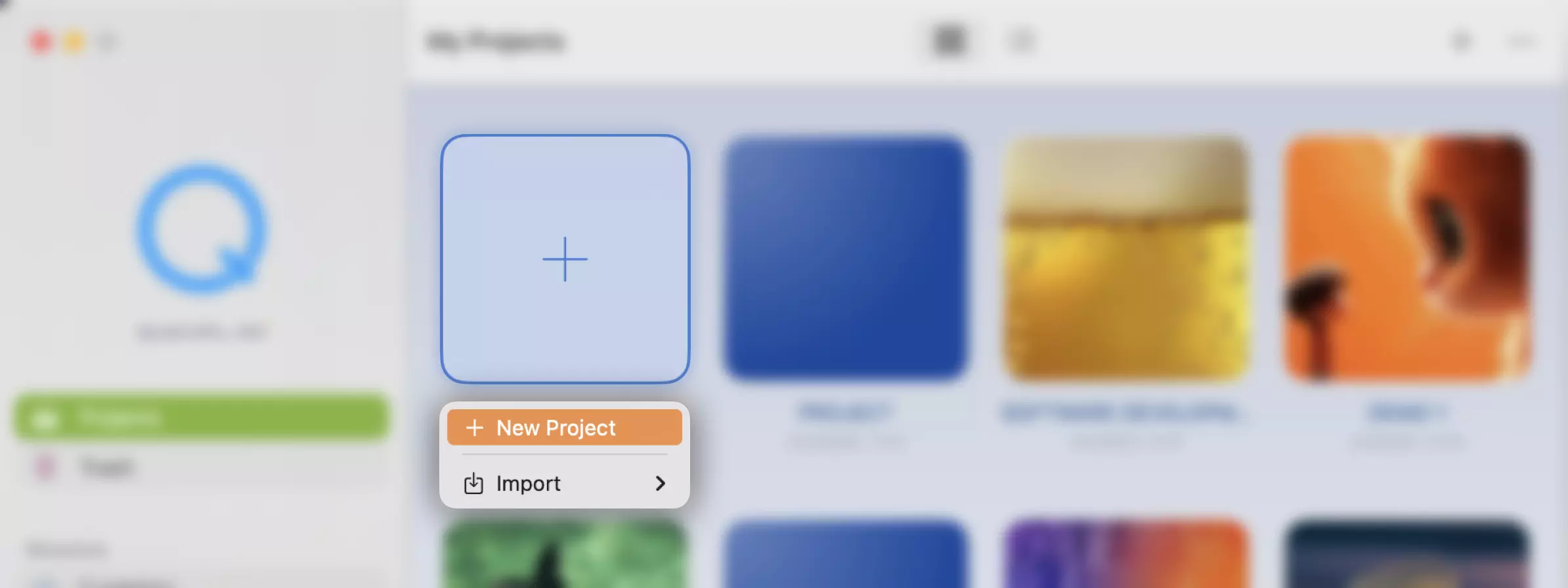
Tap the "+" icon or the "···" menu on the toolbar, and you will find the ways to help you create new projects.
Update Project Profiles
In the "My Projects" view, each icon represents a project. You can easily update the following project profile details directly from the welcome window:
- Project name
- Icon color and image
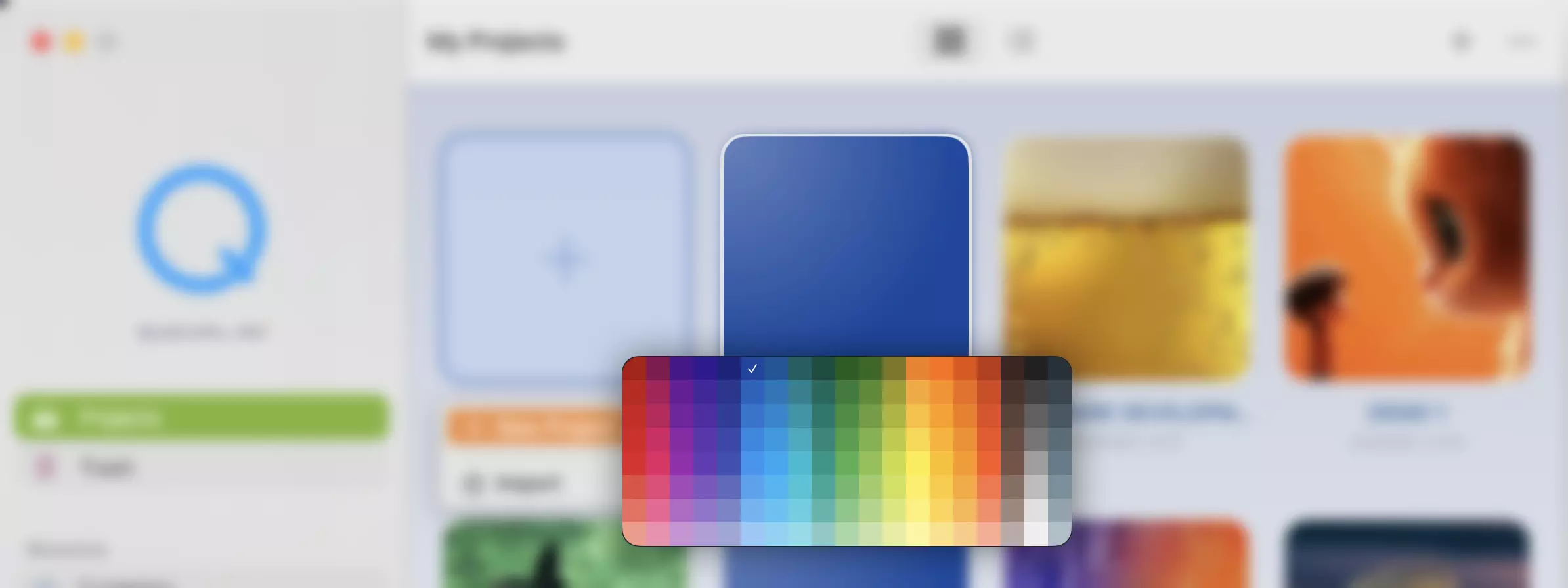
To make changes, open the context menu for a project. On touch devices, long-press the project icon. On Mac, right-click or hold ⌃ and click the icon. The context menu will provide options to edit the project name, color, and icon image.
Trash
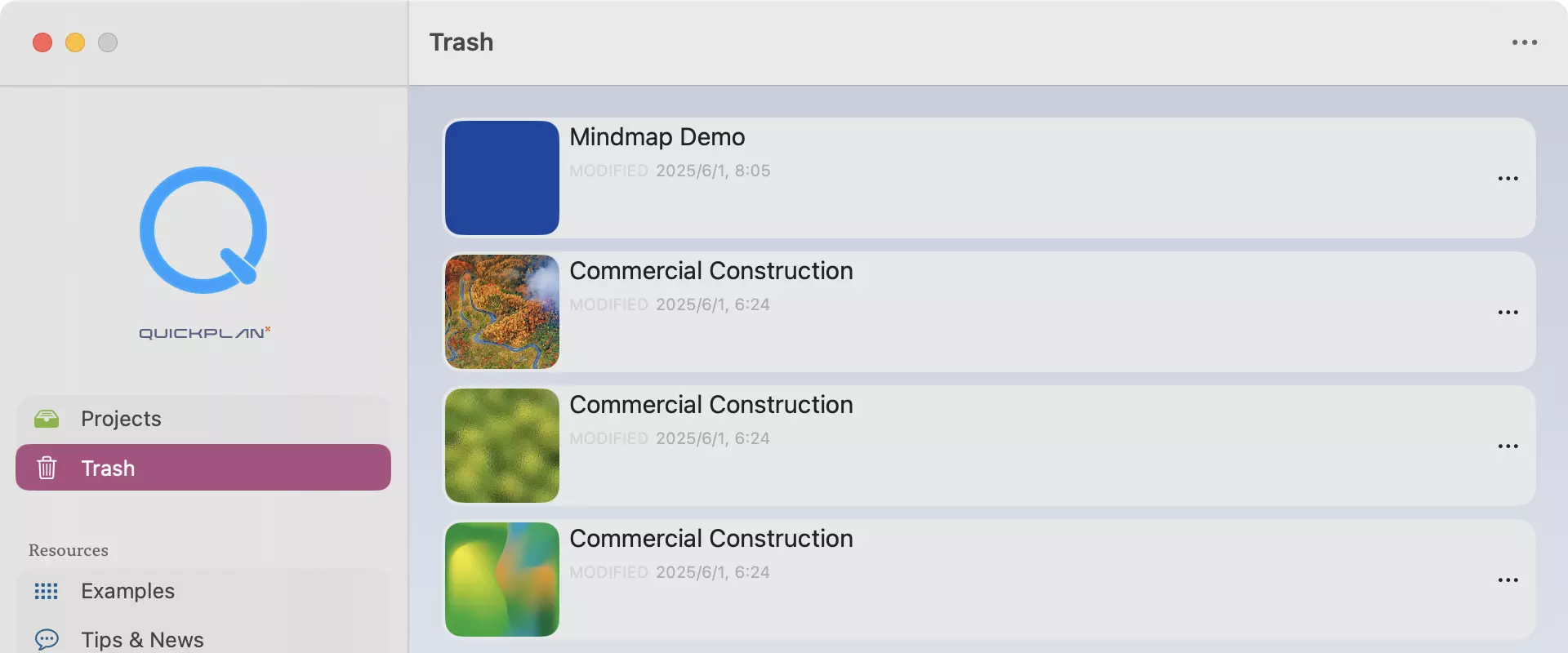
For data safety, QuickPlanX does not support permanently deleting projects directly from the "My Projects" view. You can move the projects from the "My Projects" view to the "Trash", and QuickPlanX gives you the chance to restore them from the trash or to delete them permanently.
Project Gantt Dashboard
The Project Gantt Dashboard provides a high-level visual overview of all your projects within a single consolidated timeline. To switch to this view, tap the Gantt Chart icon on the toolbar.
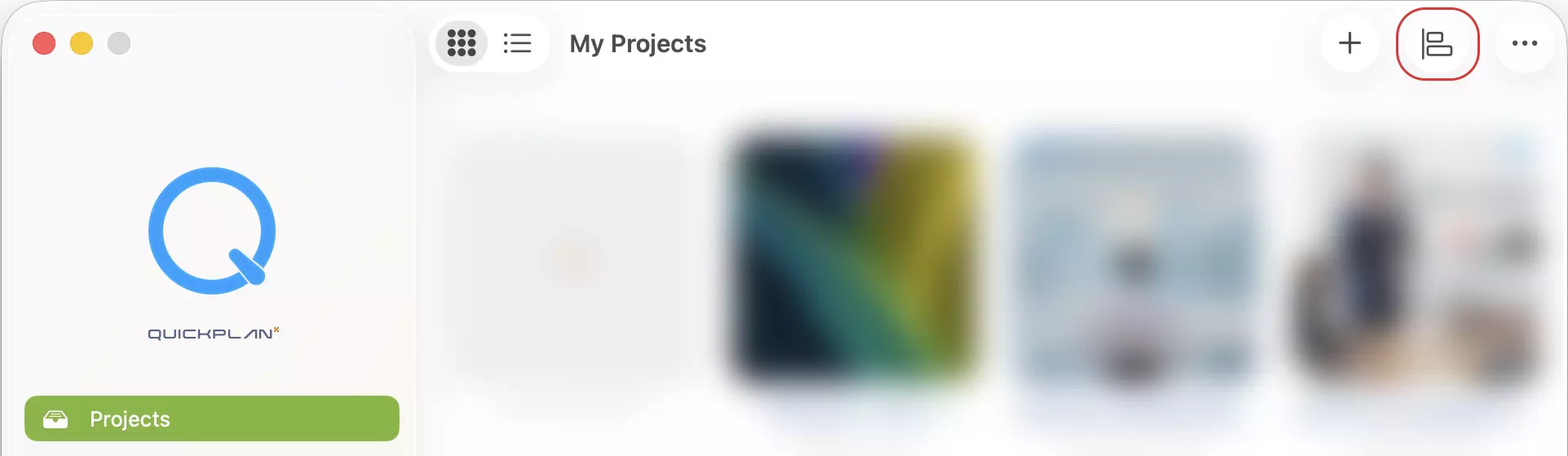
In this dashboard, each project is represented by a single row, allowing you to visualize your entire portfolio at a glance. This bird’s-eye view is essential for tracking overlapping schedules and identifying potential resource conflicts across projects.
- Quick Open: Tap a project bar to open that project immediately for editing.
- Auto-Scroll: Tap a project row to automatically scroll the timeline to that project's schedule if it is currently out of view.
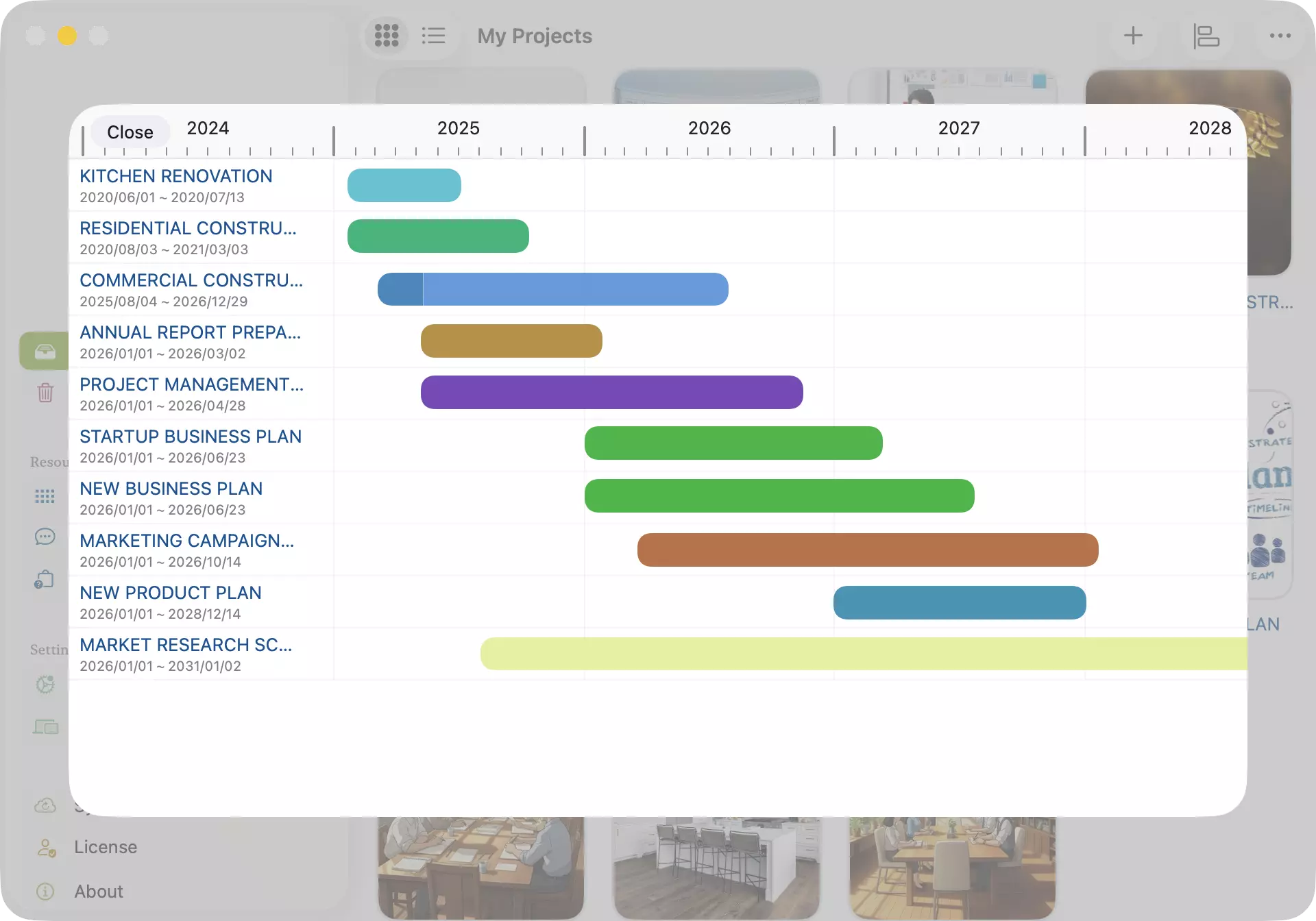
The dashboard timeline displays a continuous calendar span for all projects. This ensures you see the exact temporal alignment between different schedules, regardless of their individual working day configurations.