Create Project
There are different ways to create a new project with QuickPlanX. You can choose the one that suits your needs and preferences.
Create from Scratch
You can create a new project from scratch, if you want to start with a blank canvas and customize it as you go. To create a new project from scratch, you can do the following:
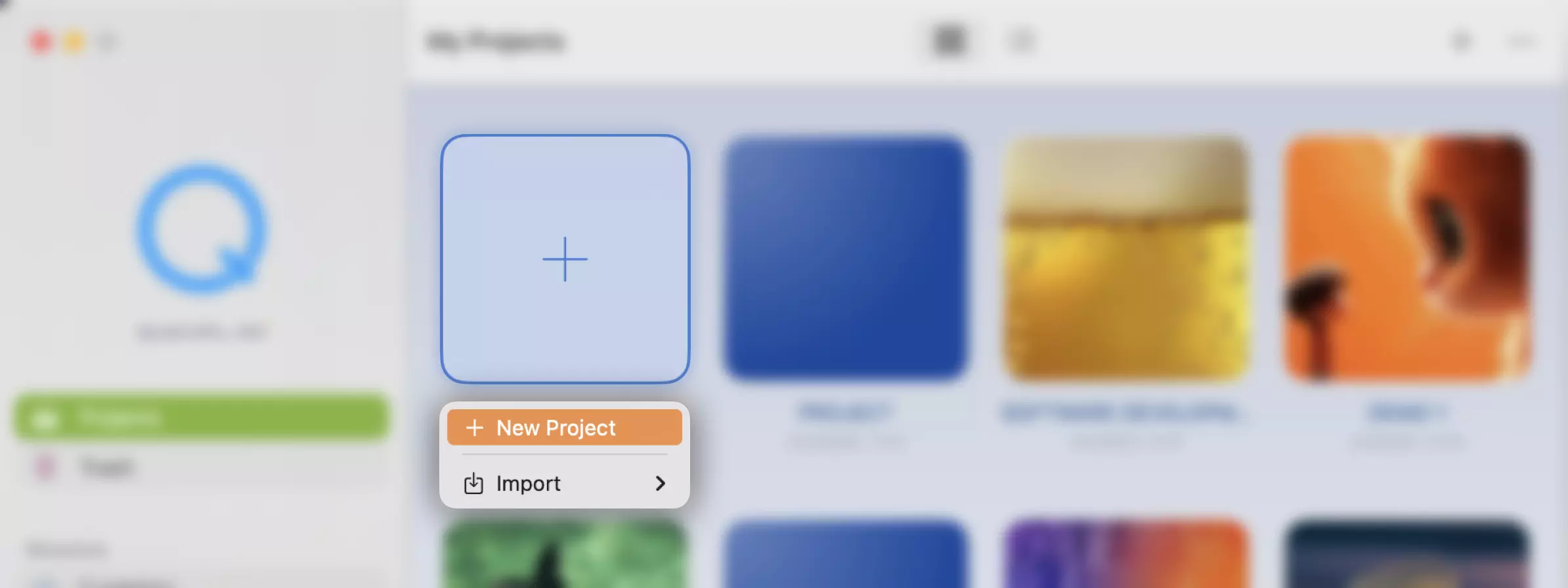
- Tap the "+" icon on the toolbar in the Welcome window.
- Select "New Project" from the menu.
- You will see a new project.
QuickPlanX provides various ways for you to create tasks one by one or in bulk, manually or via copy/paste and gestures.
Import
QuickPlanX supports to create a new project by import from files created with this QuickPlanX app or created by other apps.
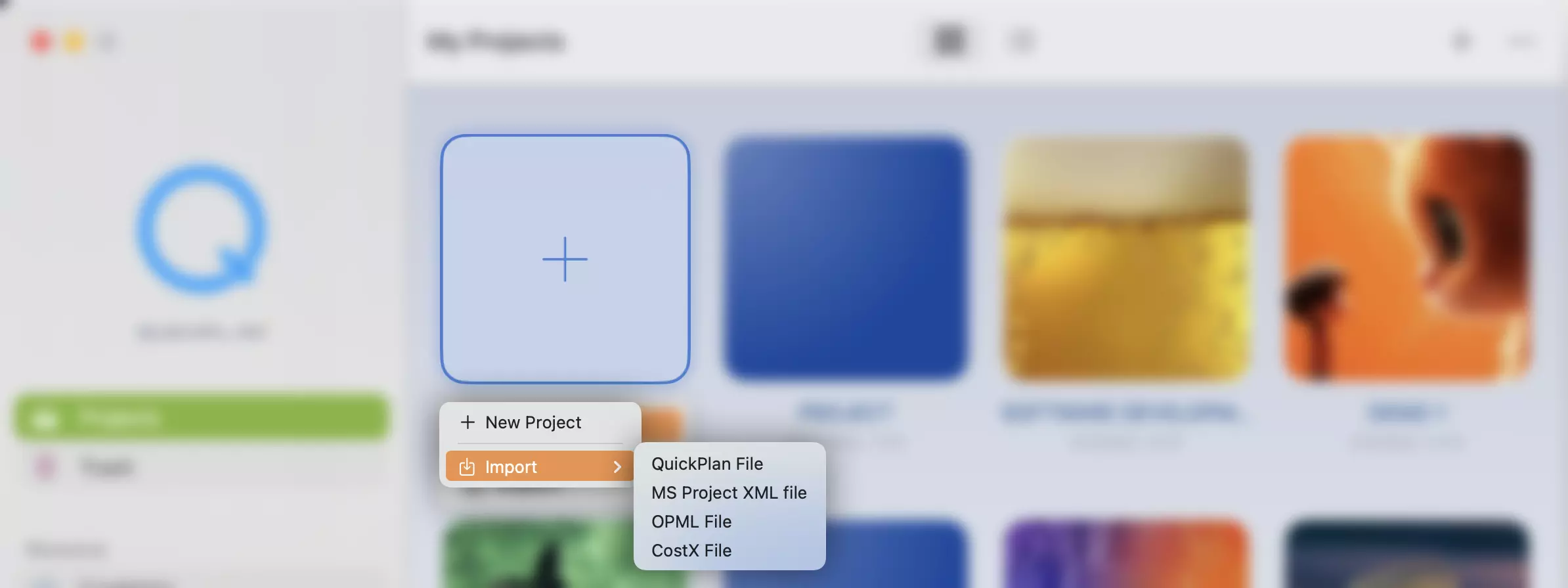
Supported File Types
QuickPlanX allows you to create a new project by importing from a variety of file formats, making it easy to migrate data from other apps or previous versions. The following file types are supported:
- QuickPlanX Project (
.quickplanx): Native project files created with QuickPlanX.
Learn more about QuickPlanX files → - Legacy QuickPlan Project (
.qpp): Files from earlier versions of QuickPlan apps.
Learn more about upgrading from legacy QuickPlan apps → - MS Project XML (
.xml): Project plans exported in XML format from Microsoft Project.
Learn more about MS Project integration → - OPML (
.opml): Outlines or mind maps exported from compatible applications.
Learn more about mind map integration → - CostX (
.costx): Project files created with the CostX app.
Learn more about CostX integration →
Steps
To create a new project by importing from a file, you can do the following:
- Tap the "+" icon on the toolbar in the Welcome window.
- Select "Import" from the menu and select to specify the file type.
- Browse and select the file that you want to import. You can choose a file from your device, iCloud Drive, or other cloud services.
- You will see a new project with the same structure and data as the imported file. You can edit the project as you wish, and save it on iCloud.
See more in
Duplicate
You can create a new project from any branch of another existing project, if you want to duplicate the whole or a part of your project. This is useful when you want to focus on a specific sub-section of your project, or create a new project based on an existing one. For more details, please check the guide on how to duplicate from an existing project.