See Your In-Progress Tasks at a Glance with QuickPlanX Widgets
Quick Look:
- Add a QuickPlanX widget to your iPhone or iPad Home Screen, or to your Mac desktop, to see active tasks without opening the app
- The widget reads directly from your project schedule — no separate to-do list needed
- Choose which project each widget displays
- Tap the widget to open the full project in QuickPlanX instantly
- Available for iPhone, iPad, and Mac
A project schedule is only useful when it guides real daily work. QuickPlanX widgets solve a common friction point: you don't need to open the app, navigate to the right project, and scroll through the Gantt chart just to know what's active today.
Add a widget to your home screen or desktop, choose a project, and the current in-progress tasks appear — drawn directly from the schedule's dates and progress data.
The Schedule Knows What Is Active
A project plan already contains the information needed to identify current work. Tasks have dates, duration, progress, hierarchy, and project context. When those details are maintained, the plan can tell you more than a static checklist.
Instead of asking you to maintain a separate daily task list, QuickPlanX reads the project schedule and surfaces tasks that span today. That information gives you:
- Which tasks are currently active in this project?
- Which project should you focus on first today?
- Is there work that needs progress review or schedule adjustment?
- Do you need to open the full project, or is the current task picture enough?
The full plan still exists in QuickPlanX, with Gantt, Table, Tree, and Column views for serious planning. In-progress task visibility simply gives the schedule a glanceable daily surface.
More Useful Than a Simple To-Do List
Many productivity apps are built around checked and unchecked items. Project schedules are different.
In a project schedule, the key question is not simply "is this task complete?" A schedule is meant to guide execution. It expresses when work should happen, how long it lasts, what it depends on, who is involved, and how the plan should change when reality changes.
That is why a project schedule must stay dynamic. If a task slips and the plan is not updated, the next task may appear ready even though its prerequisite is not complete. The schedule stops being a reliable guide. For deeper background, see Project Scheduling App.
QuickPlanX is designed for that kind of work. The in-progress widget does not replace the schedule with a simplified checklist. It extracts the current execution signal from the live project plan: what is active now, what deserves attention, and whether the plan still reflects reality.
For example: a project manager with a detailed plan of hundreds of tasks may not need to open the full Gantt chart just to regain daily focus. The widget shows active tasks from the selected project. If the current picture looks wrong, that is a signal to open the project, review the schedule, and update the plan.
Information at a Glance
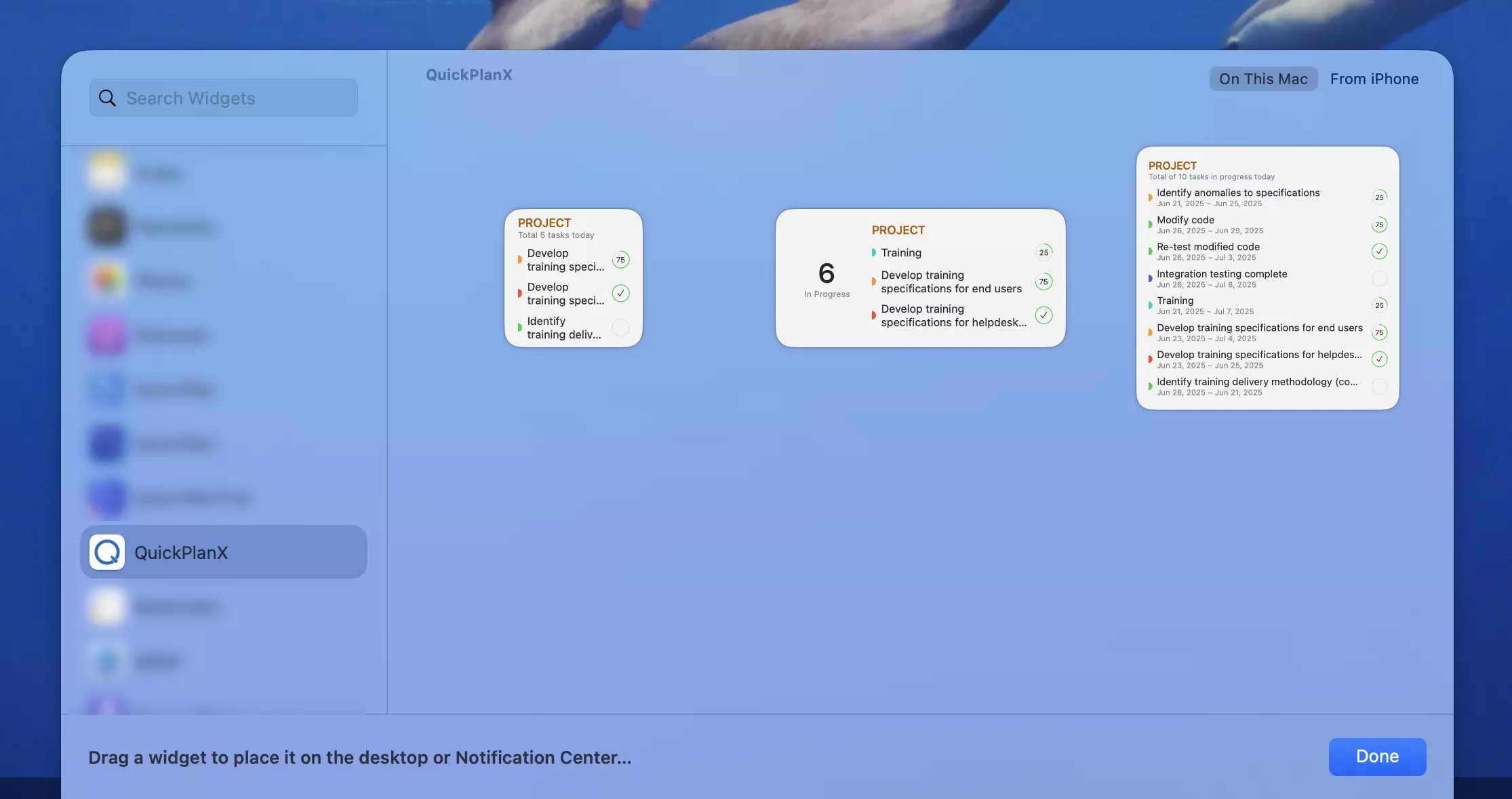
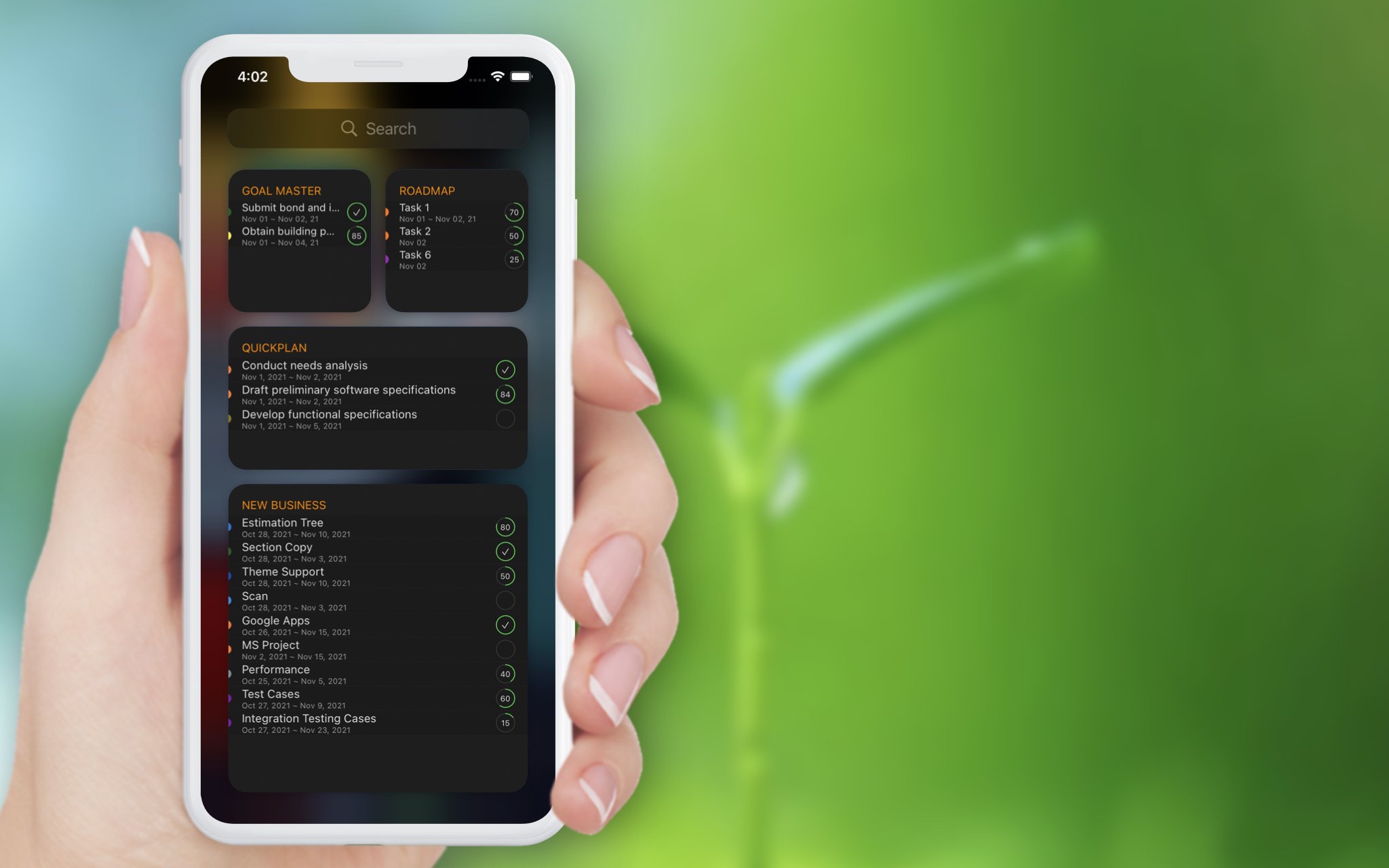
The widget can show:
- The selected project name
- The number of tasks in progress today
- Task names that are currently active
- Task date ranges
- Visual cues that keep the list readable
You can choose which project a widget displays, add multiple widgets for different projects, and select the widget size that fits your home screen or desktop layout.
The widget guide explains how to add a QuickPlanX widget, choose a size, select the project to monitor, and open the project directly from the widget.
A Bridge Between Planning and Execution
Planning and execution often fail to stay connected. A plan is created, but daily work happens elsewhere — in chat messages, meeting notes, or memory. Over time, the plan becomes less trusted because the work has moved away from it.
In-progress task visibility helps close that gap. When QuickPlanX surfaces current work from the schedule, it encourages you to treat the plan as a living execution guide. If the in-progress tasks look right, the plan is still aligned with reality. If they look wrong, that's a signal to update the schedule.
A project schedule shouldn't just record what someone hoped would happen. It should be maintained as work changes — and a current-work widget makes those gaps easier to notice. For more on this idea, see What a Project Schedule Is.
Available Across Apple Devices
QuickPlanX is a universal app for iPhone, iPad, and Mac. The widget feature reflects that:
- On iPhone, keep active tasks visible on the Home Screen between other activities
- On iPad, add a widget to the home screen for at-a-glance project status
- On Mac, add a widget to the desktop or Notification Center
With QuickPlanX's iCloud CloudKit sync, the same project data can stay available across all your Apple devices. The plan can be created and maintained in the full app on any device, while in-progress tasks remain visible in widget form wherever you are.
Ready to try QuickPlanX?

Related features: Keep Every Device in Sync · One Universal App for Apple Devices