Coming in QuickPlanX 6.1: Clearer Weeks, Months, and Working Weekends in Day View
QuickPlanX 6.1 is in final release preparations and will be available soon.
Day View in the Gantt chart gives you precise, day-by-day scheduling. QuickPlanX 6.1 introduces two new display settings for this view, addressing two distinct planning needs: bolder week and month division lines, and shaded backgrounds for weekends configured as working days.
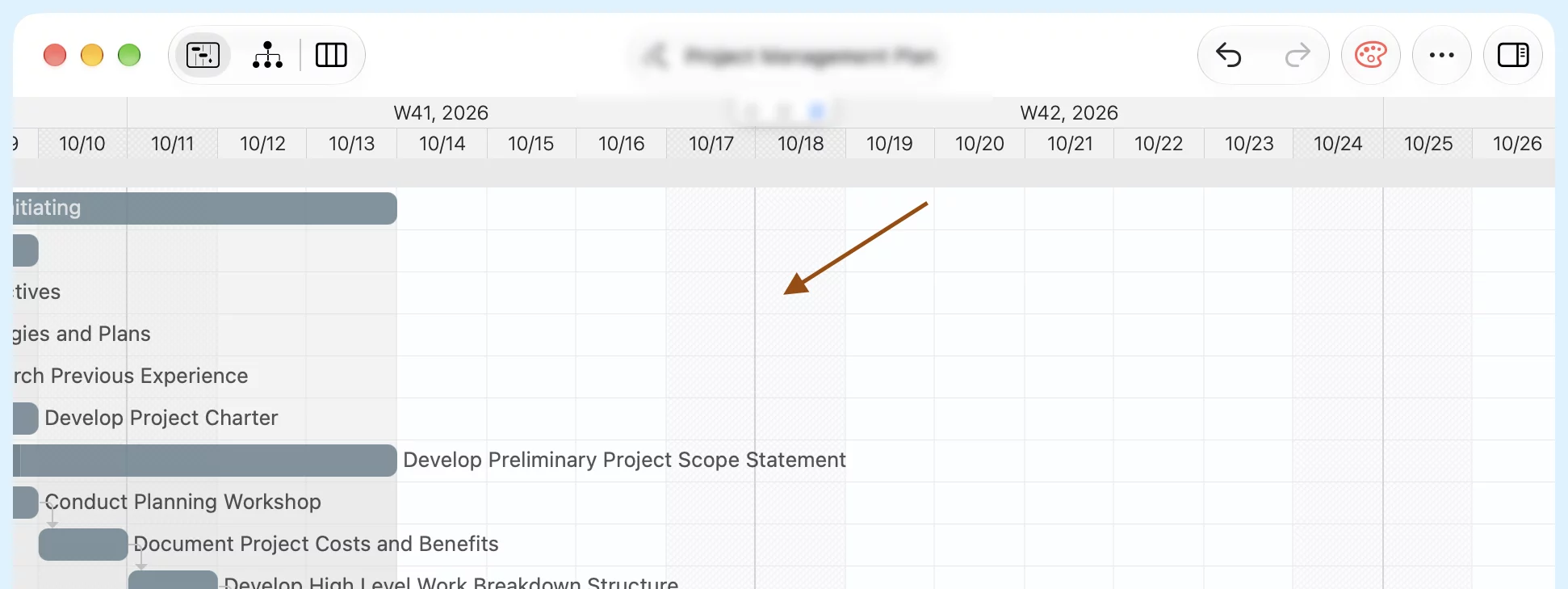
Week and month boundaries
On long-running projects, scrolling through a daily timeline of identical grid lines makes it easy to lose your place. You often have to glance repeatedly between tasks and the date header just to see where a week starts or when the month turns over.
The new Week & Month Boundaries in Day View setting adds clear visual anchors directly across the chart:
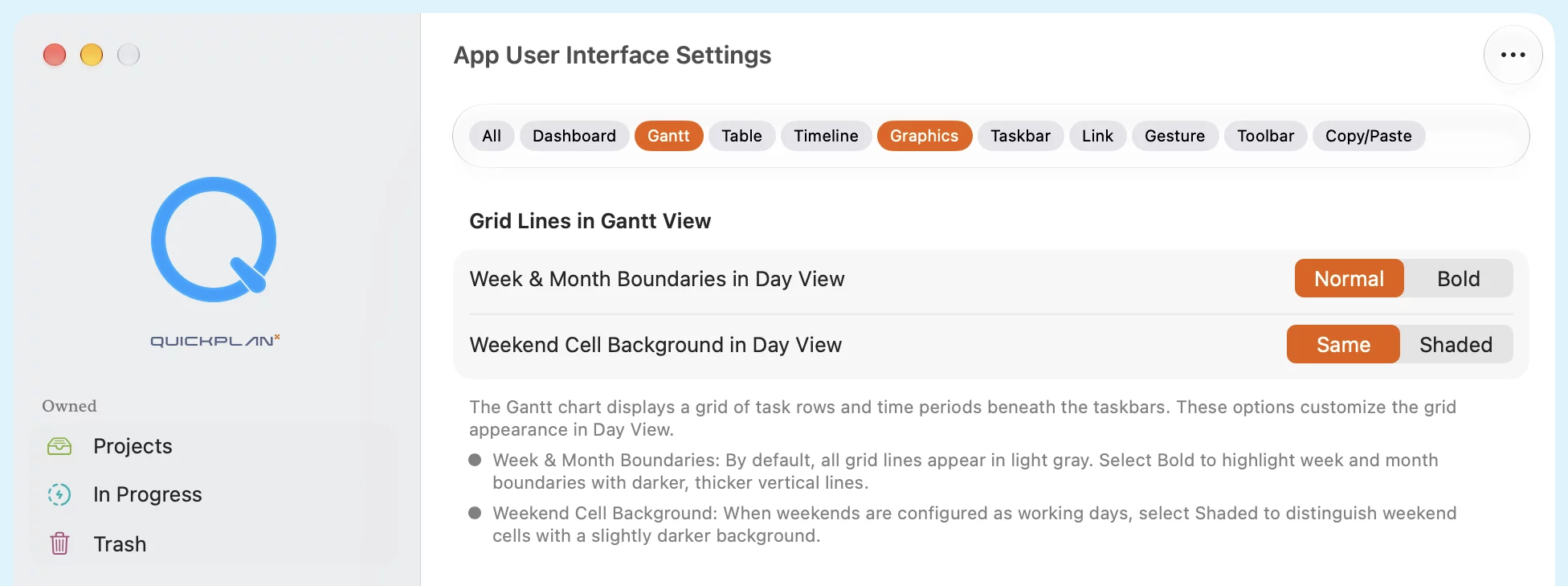
- Normal — Keeps the default uniform, light vertical lines.
- Bold — Emphasizes the start of each week and month with darker, thicker divider lines.
With Bold selected, you keep day-by-day granularity while instantly tracking weekly cadence and month-end target dates.
Highlighting weekends configured as working days
For most projects, weekends are non-working days. But in industries like construction and field operations, project calendars often treat Saturdays and Sundays as working days to keep progress moving continuously.
In these setups, project managers still need to know exactly which scheduled working days land on a calendar weekend. Managing weekend work involves practical constraints that weekdays don't have: weekend subcontractor shifts, site access and noise rules, overtime tracking, and crew rotations.
When weekends are configured as working days, QuickPlanX displays them with the same plain background as normal weekdays. The new Weekend Cell Background in Day View setting makes those days easy to spot:
- Same — Uses the default background across all working days.
- Shaded — Tints weekend columns with a soft background, even when configured as working days.
This is strictly a visual aid for project oversight. It does not alter working-day status, task durations, calendar constraints, or critical path calculations.
Where to find them
Both options live in App Settings → User Interface, under the Grid Lines in Gantt View section (you can also search for the Gantt or Graphics tags):
Changes apply live to the Gantt chart in the background, so you can toggle between styles and see which combination fits your project best.