QuickPlanX 3.0: Keep Project Plans Aligned with Reality Using Status Day
Every project starts with a clear plan. Then work begins — and the plan starts to drift. Completed tasks go unrecorded. Unfinished tasks linger in the past. By the time you look up, your schedule no longer reflects what actually happened.
QuickPlanX 3.0 introduces Status Day — a focused, deliberate way to bring your project plan back into sync with reality.
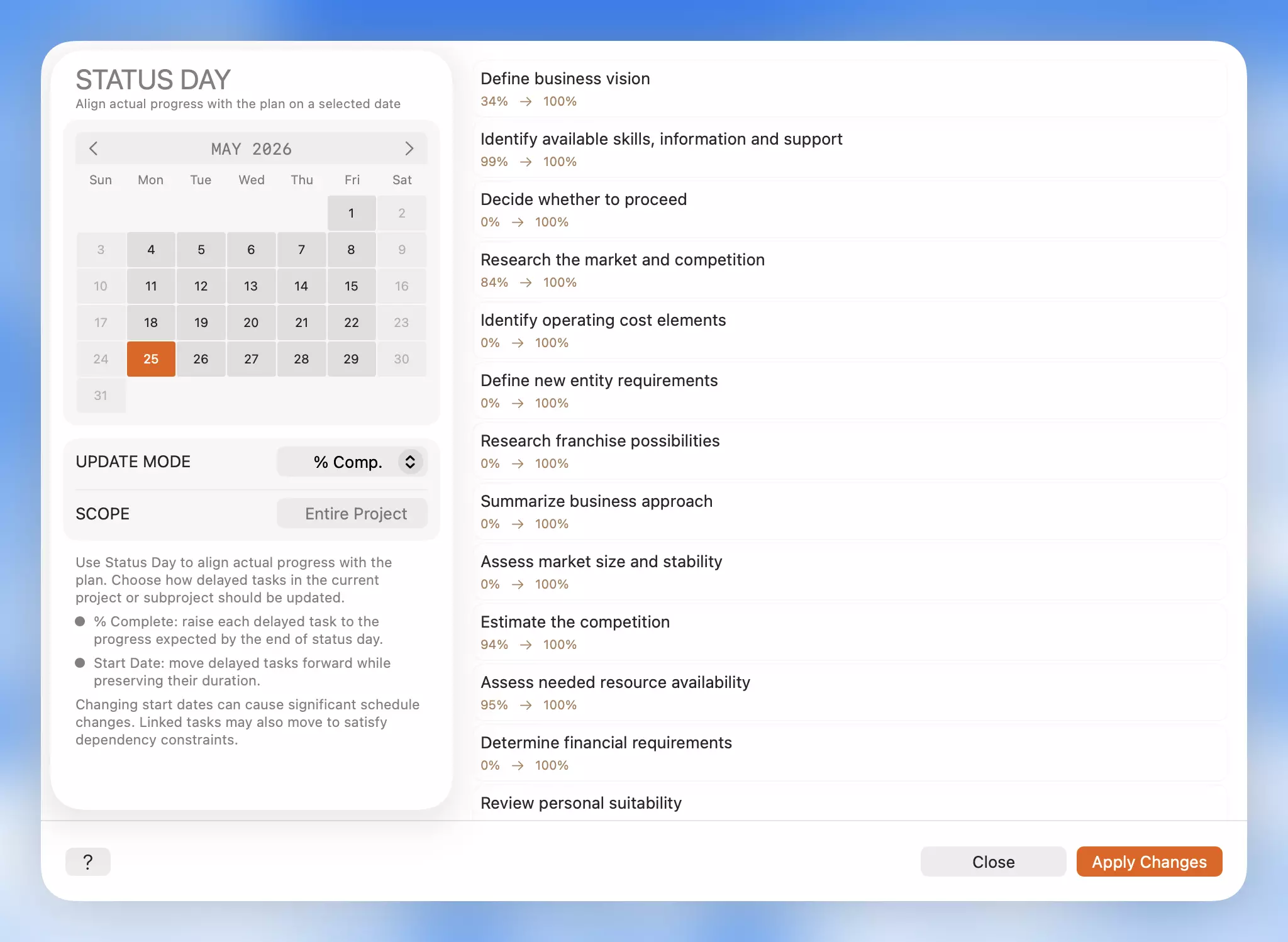
How It Works
Pick a status date. Status Day filters your project (or a specific subproject) for tasks that should have progressed further by that date. Then you choose how to resolve them with one of two targeted updates:
- % Complete — Updates the Record. Use this when work actually happened but was never logged. Completion values are raised to match the expected progress for the selected date, without touching any task dates.
- Start Date — Updates the Plan. Use this when the work simply did not happen. Delayed tasks are rescheduled forward while their original duration is preserved. Dependent tasks shift automatically to satisfy their constraints.
The distinction matters: one corrects the record, the other corrects the schedule. Status Day keeps them separate so you make the right call for each situation.
Smart, Safe, and Scoped
- Respects the Project Calendar — Non-working days appear in the date picker but cannot be selected, keeping every review date consistent with the project's scheduling rules.
- Context-Aware — Reviewing the whole project? Status Day applies project-wide. Inside a subproject? It applies only there. You control the scope.
- Preview Before You Commit — See exactly which tasks will change and how before anything is applied. Full Undo (
Command + Zon Mac, Undo button on iOS) is supported if you want to step back.
Status Day is not a one-click repair tool. It is a deliberate review workflow — fast enough for weekly maintenance, rigorous enough to trust.
Available Now
Status Day is available in QuickPlanX 3.0 on iPhone, iPad, and Mac. Open it from the project More menu, choose a working date, review the delayed tasks, and apply the update that fits.
Learn More
For a full step-by-step walkthrough, see the Status Day documentation.