Folding and Unfolding Task Groups
QuickPlanX organizes your project tasks in a tree structure, allowing you to collapse (fold) and expand (unfold) task groups. This feature helps you easily switch between a high-level project overview and a detailed task view.
Fold or Unfold a Single Task Group
You can collapse or expand individual task groups to hide or reveal their sub-tasks.
-
Using a Mouse or Touchscreen:
- In Table View and Gantt Chart, click or tap the triangle icon to the left of the task group's name.

- In Tree View, click or tap the icon at the top-left corner of the selected task group.

- In Table View and Gantt Chart, click or tap the triangle icon to the left of the task group's name.
-
Using a Keyboard (Mac only):
- Select a task group and press
Spaceto toggle between folded and unfolded.
- Select a task group and press
Fold or Unfold All Task Groups at Once
QuickPlanX enables you to collapse or expand all task groups in your project simultaneously, which is very useful for getting a complete project overview.
On Mac
- Fold All: Press
⌥⌘⇧+←(Option + Command + Shift + Left Arrow). - Unfold All: Press
⌥⌘⇧+→(Option + Command + Shift + Right Arrow).
On iPhone and iPad
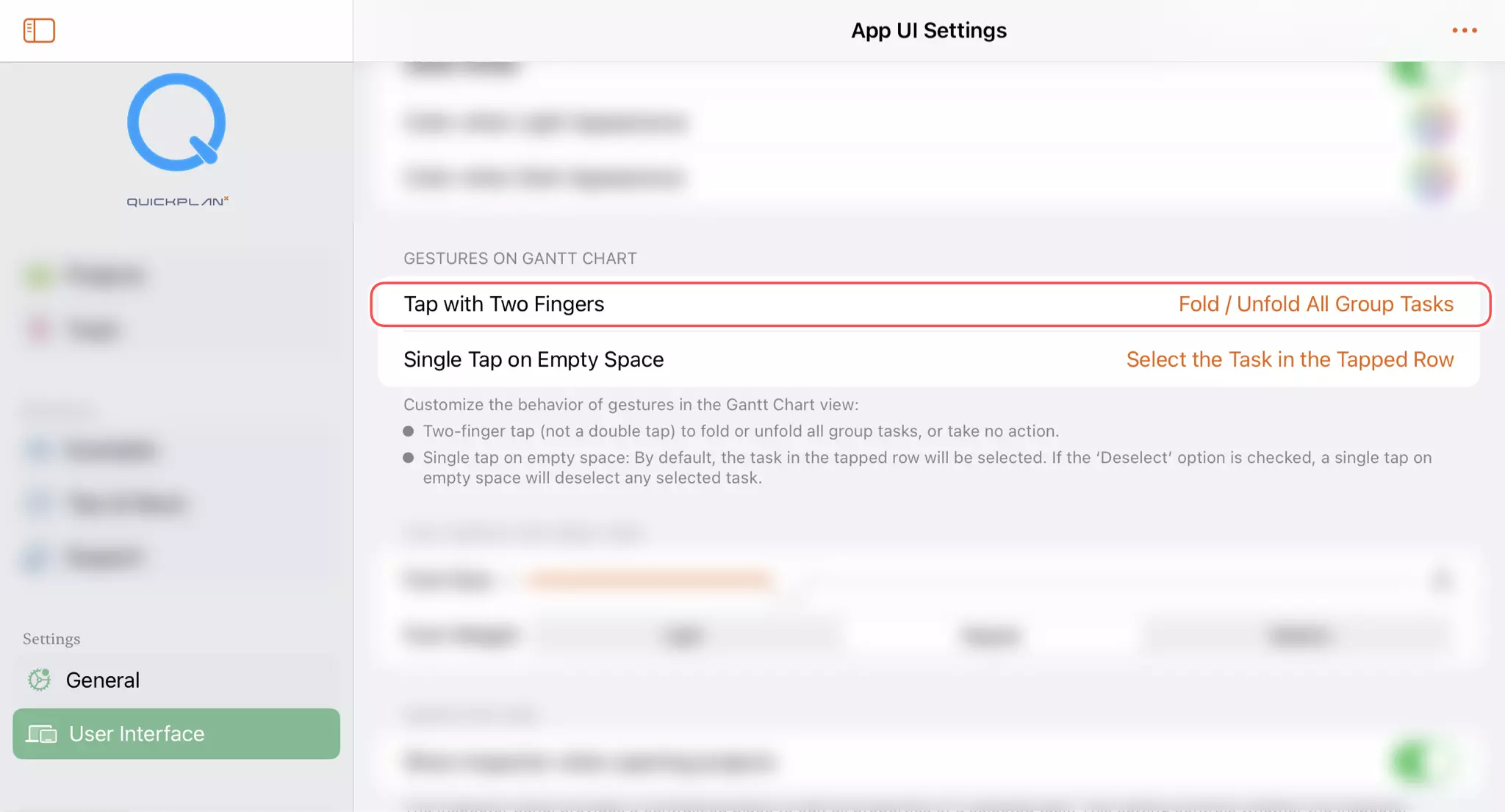
A simple two-finger tap on Gantt Chart toggles between folding and unfolding all task groups.
💡 Tip: Customizing the Two-Finger Tap Gesture
For iPhone and iPad users, the two-finger tap gesture is customizable. In the App's User Interface Settings, you can configure it to fold/unfold all task groups or disable it if it interferes with other actions.