Inspector
The Inspector provides streamlined editing for individual tasks, allowing you to focus on a specific task and modify its details with ease using the dedicated Inspector panel.
Edit Task Data
Here's how it works:
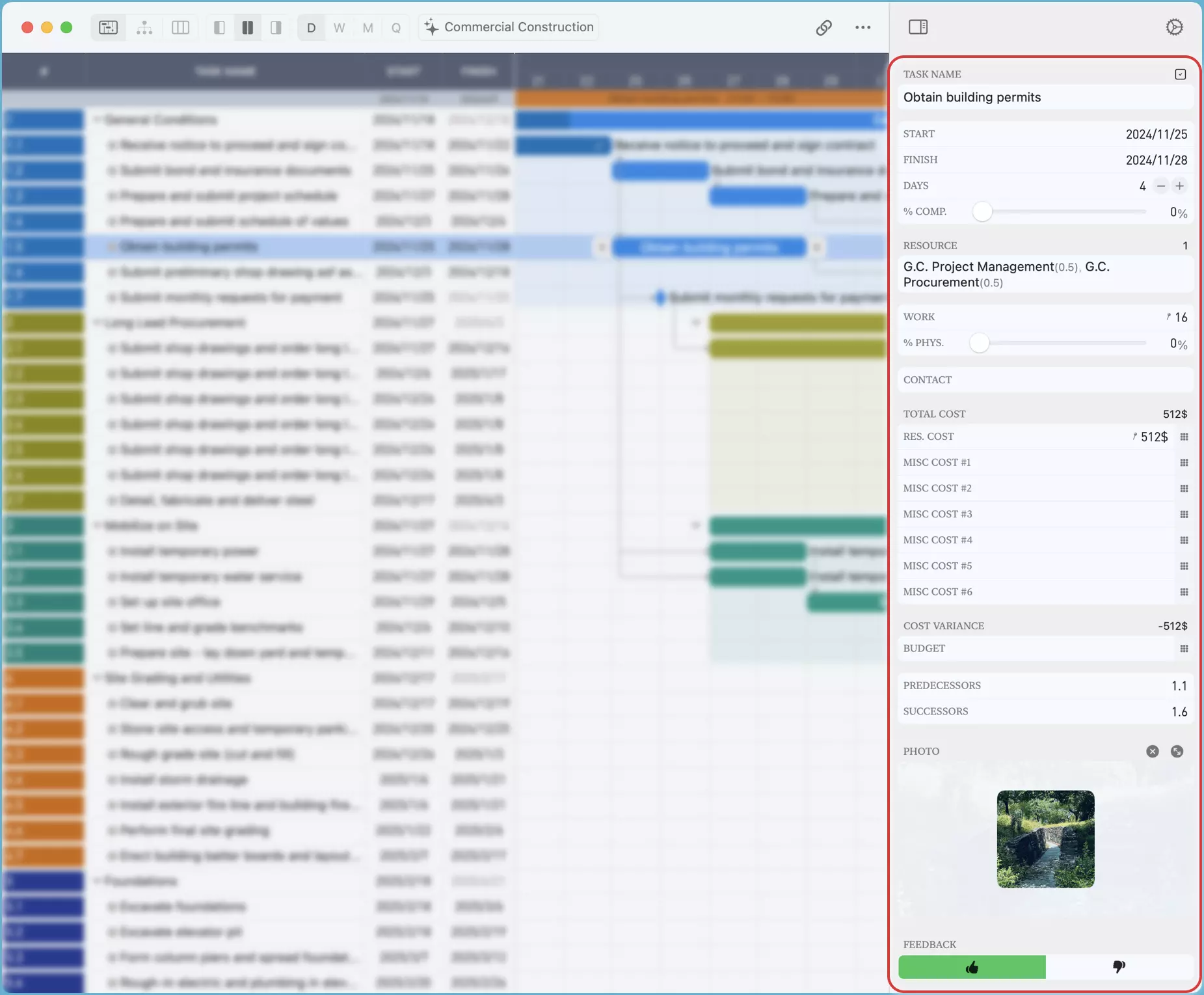
-
Select a Task:
Choose a task from the Table View, Gantt Chart, Tree View, or Column View.
-
Inspect Fields:
The Inspector displays all visible fields for the selected task.
-
Edit Values:
Browse and modify the values of each field directly within the Inspector.
The Inspector offers a centralized and intuitive interface to manage individual task data, saving you time and effort.
Field Operations
Field operations are simple and intuitive. Click on any field to begin editing its corresponding value. The following list covers the basics and special considerations for different field types.
Field Title Context Menu
Right-click (Ctrl + Click) the title of each field on Mac, or long press the title of each field on other platforms, to show the context menu.
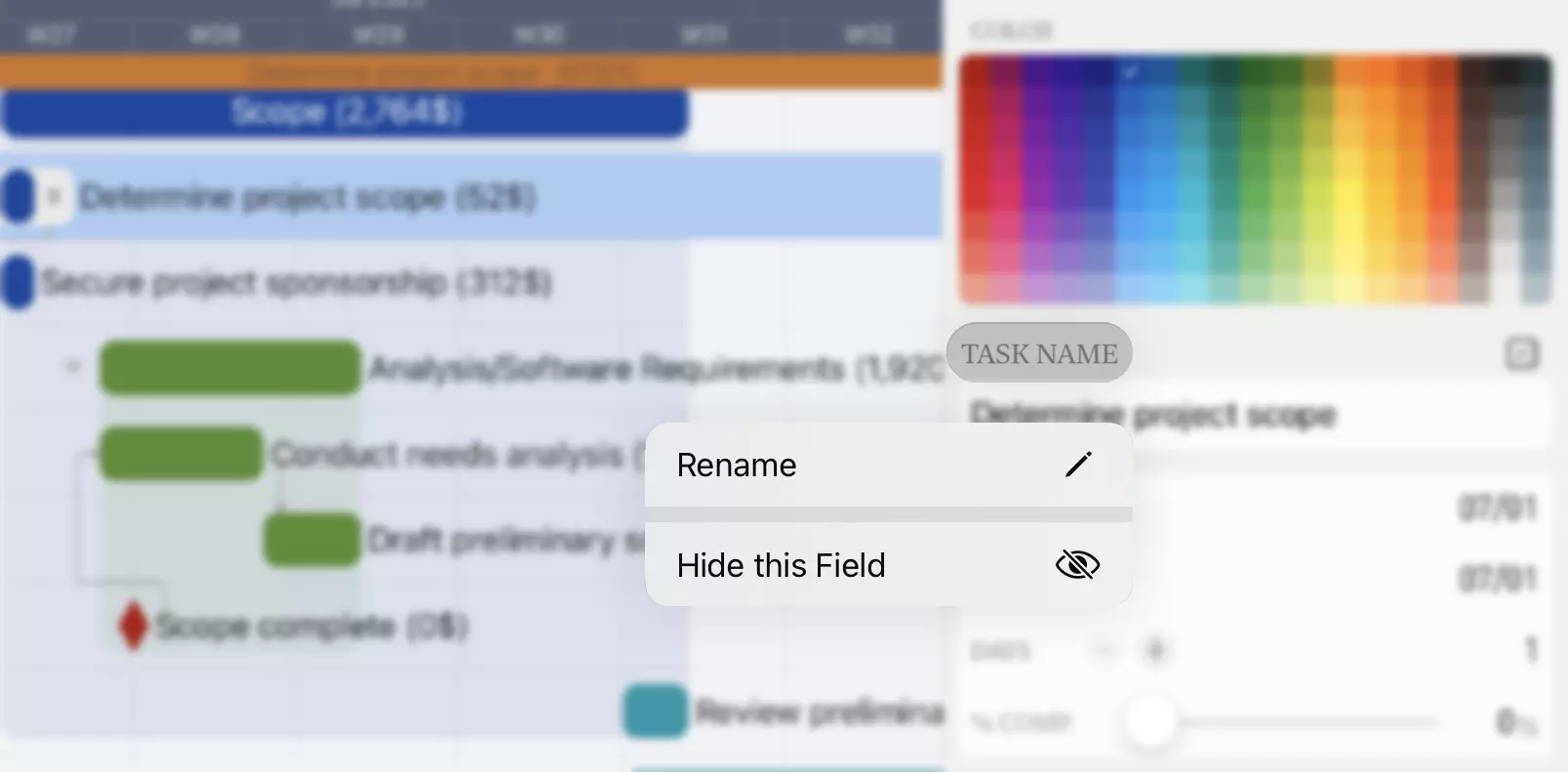
- Rename: Rename the title of the field
- Hide this Field: Hide the field directly from the Inspector
Start and Finish Fields
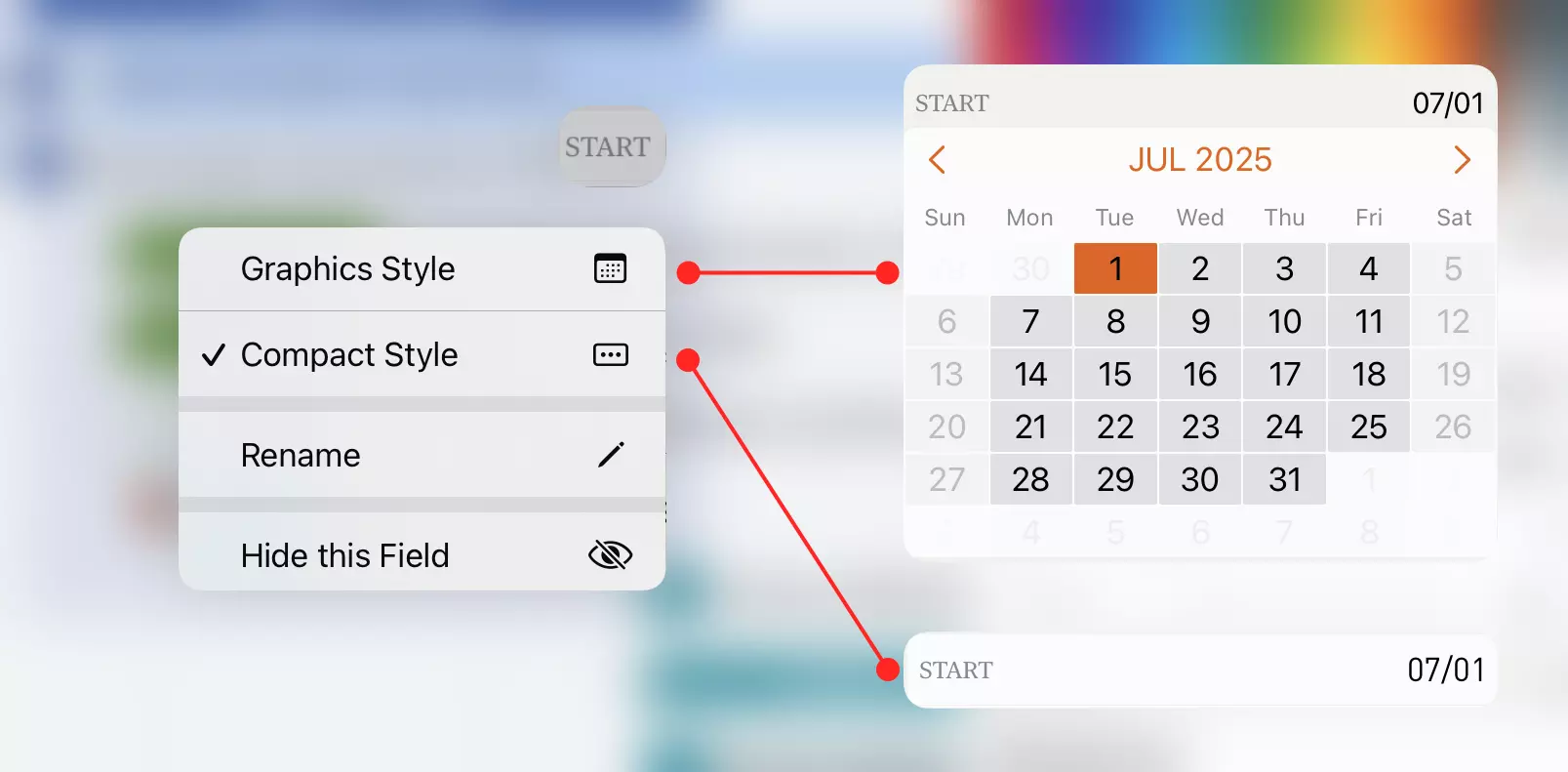
You can switch the date field display style between "Compact Style" and "Graphics Style" via the title context menu.
Days Field
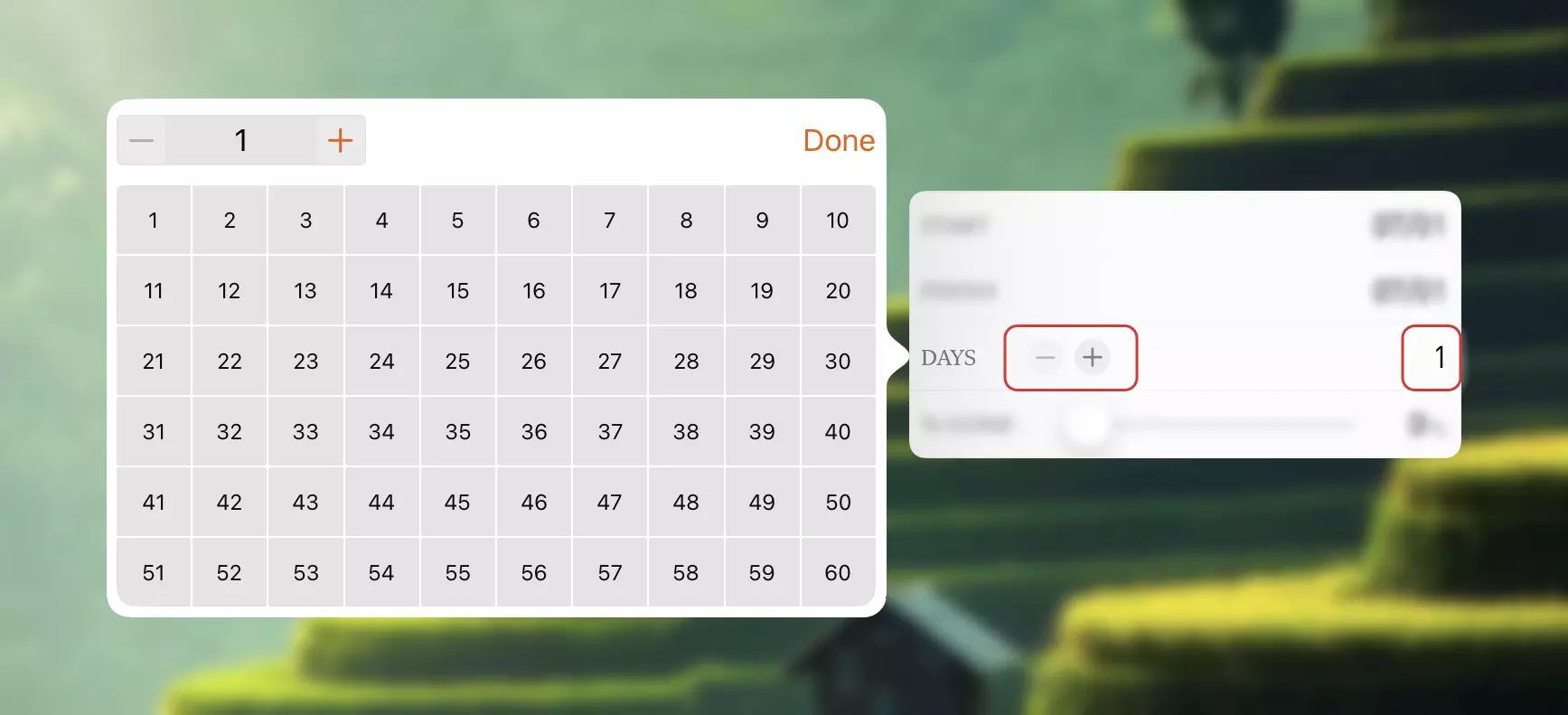
Tap the field to change by input or selection, or tap the "+" and "-" icons to directly increase and decrease the working day value.
Percentage Fields
On the % Comp. and % Phyc. fields, you can directly drag the slider to change the value, or tap the value to select one from the popover.
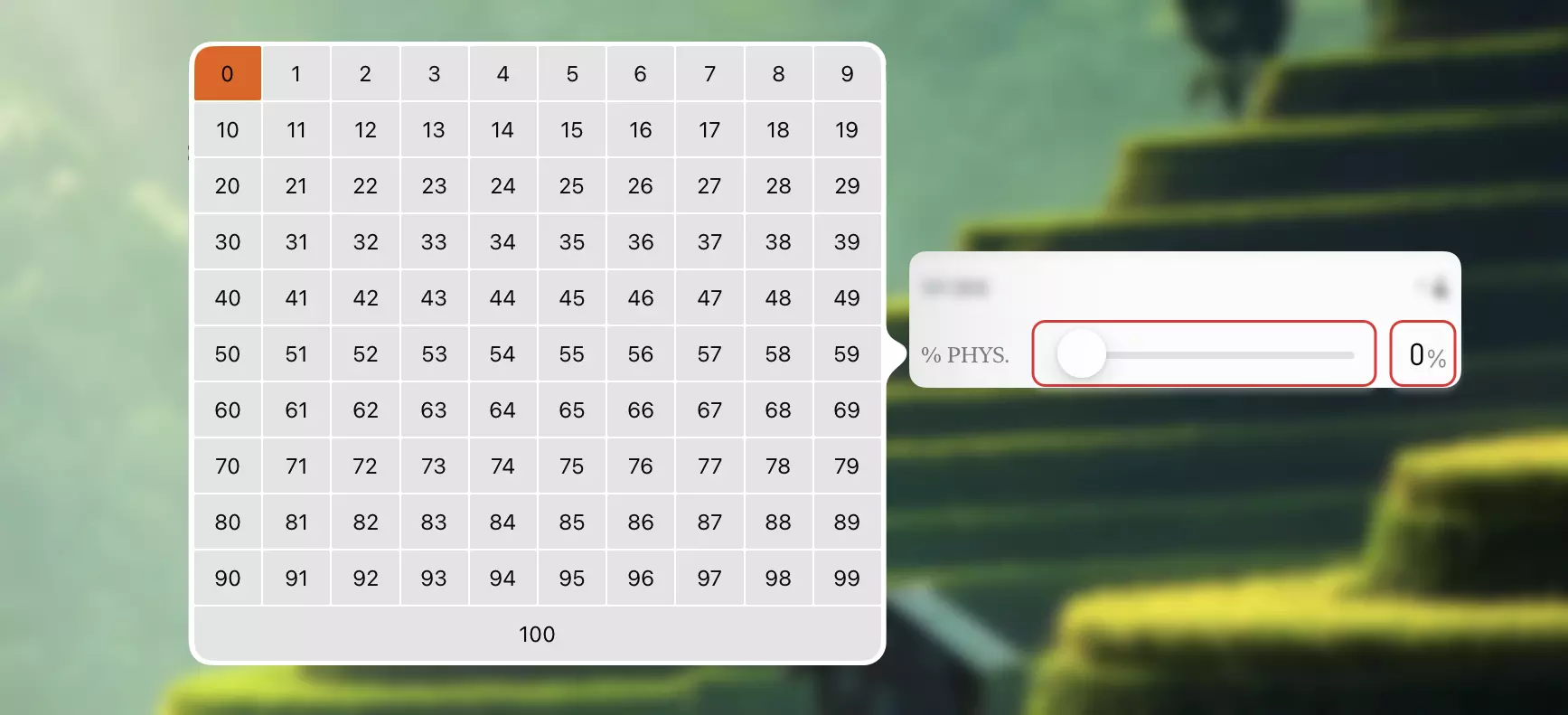
Photo Field
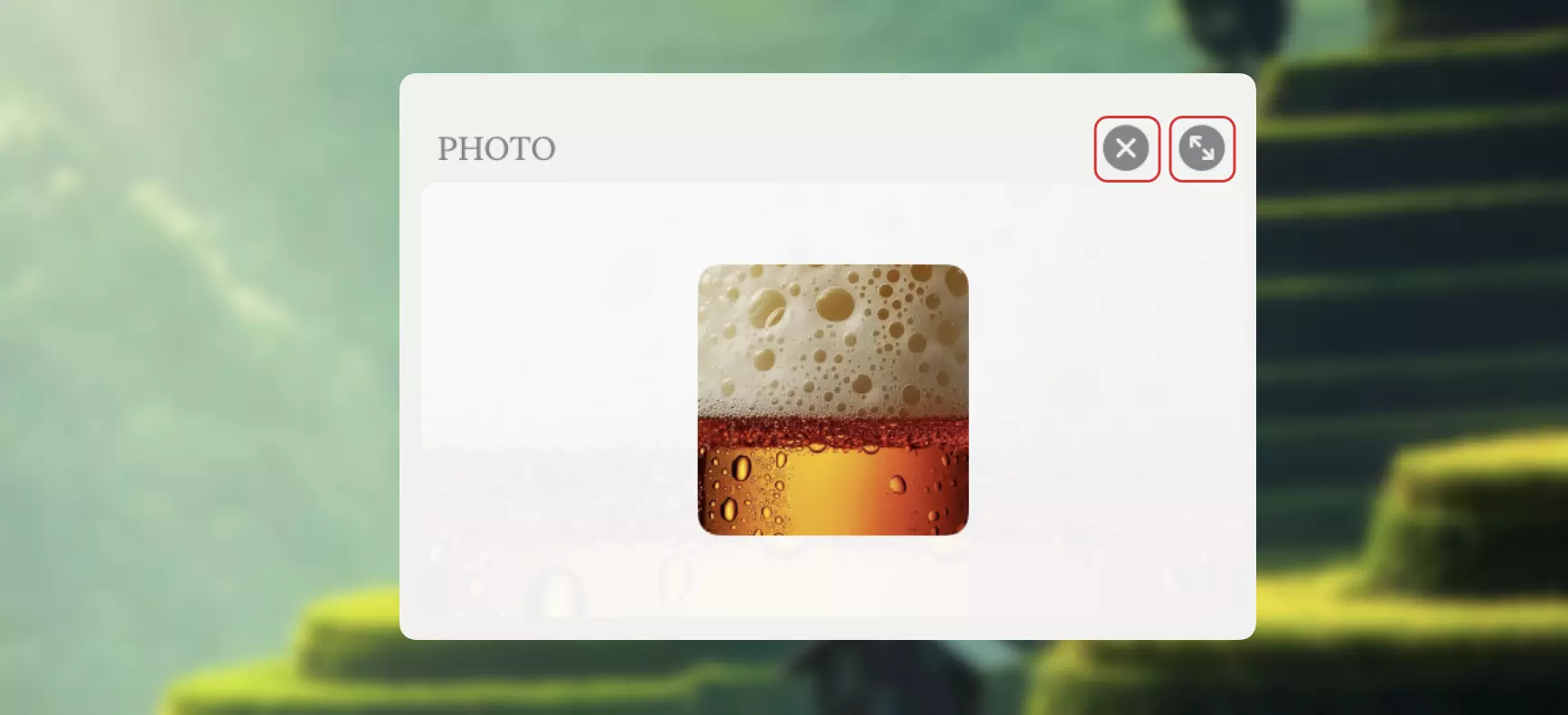
Tap the field to choose a photo from Photos. On Mac, you can drag an image from a web page, a file, or another app to the photo field to change the photo.
When a photo is assigned to the selected task, two buttons appear at the top-right of the field:
- Reset: Remove the photo and set the field to empty
- Preview: Display the photo in a larger view for better visibility
URL Fields
Single Line Text Fields
Multiline Text Fields
Color Field
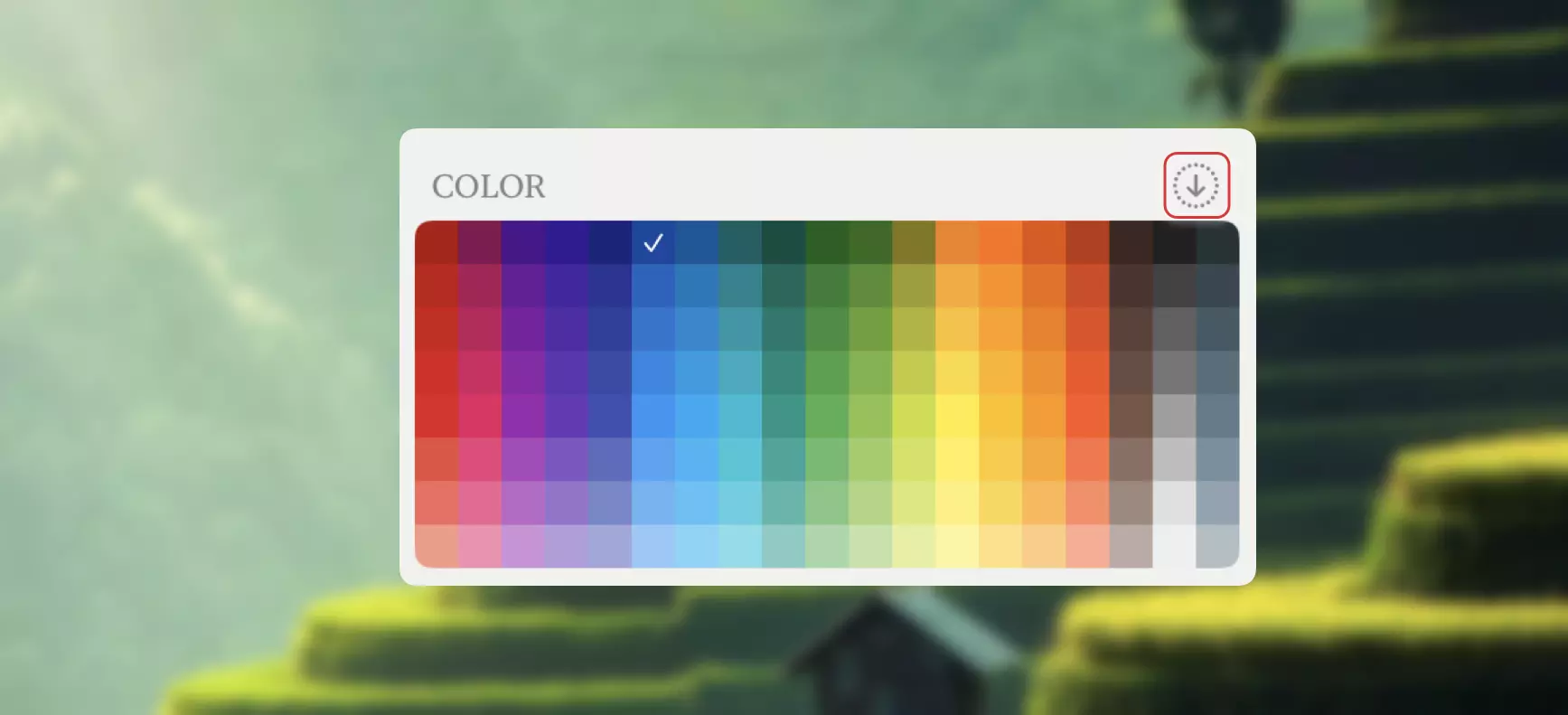
Tap to choose a color for the selected task. If the task is a group task, there is an icon at the top-right of the field—you can tap it to apply its color to all its children at all levels.
Tips
Customizing Field Visibility
You can customize which fields are visible in the Inspector through your project settings. This allows you to select the fields used in your project and customize their visibility in both Table View and Inspector views.