Sort & Filter Tasks
QuickPlanX allows you to sort and filter tasks directly within the Table View. In Sort & Filter Mode, you can define column-based criteria—including multi-column sorting priority—and control the visibility of group and subproject tasks.
Supported Columns
Sortable Columns
- Time: Start, finish, and duration.
- Progress: Task completion, planned completion, work, and work completion.
- Financials: All cost and budget fields.
- Custom Fields: String, boolean, and picker fields (picker fields are sorted by index, not option title).
Filterable Columns
- Date Range: Filter Start and Finish columns by specific ranges (e.g., Today, This Week, This Month).
- Resources: Filter by assigned resources.
- Status: Filter Task Completion by
Not Started,In Progress,Completed, orSlow Tasks(tasks behind schedule). - Work: Filter Work Completion by
Not Started,In Progress, orCompleted. - Boolean: Filter by
True,False, orNo Input. - Picker: Filter by specific options or
No Input.
Entering Mode
To enter Sort & Filter Mode:
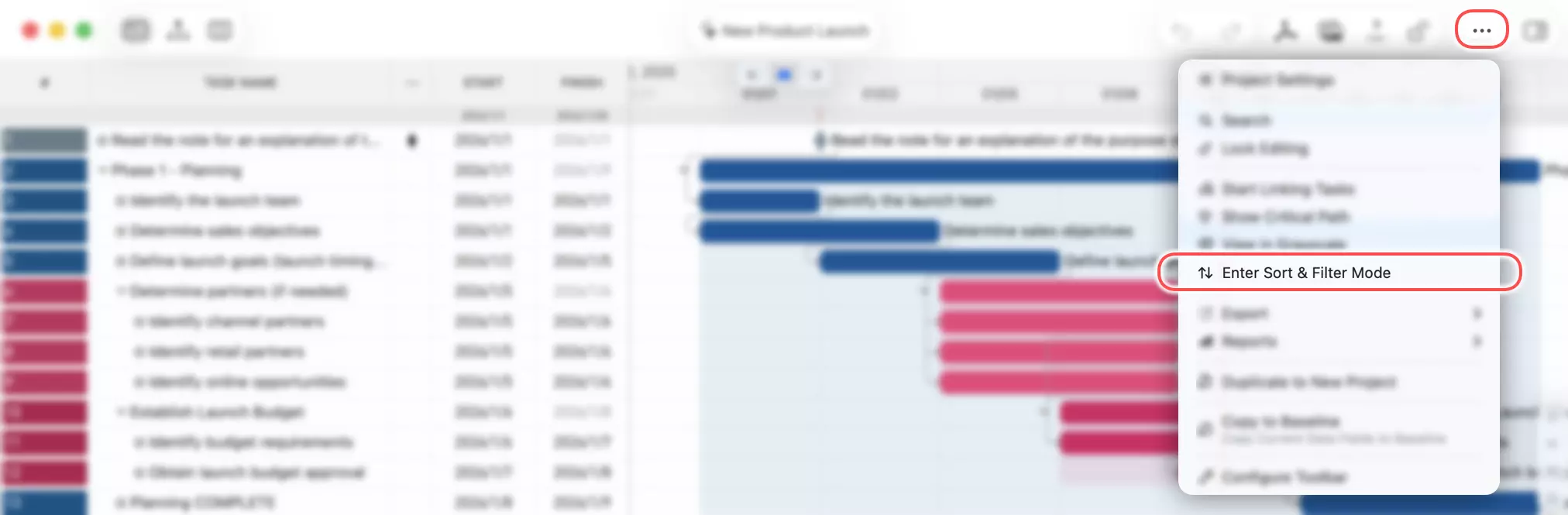
- With the Table View active, tap the "···" (More) button on the toolbar and select the sort option.
- Alternatively, right-click any sortable or filterable column header and select Sort & Filter to enter the mode with that column pre-selected.
Exiting Mode
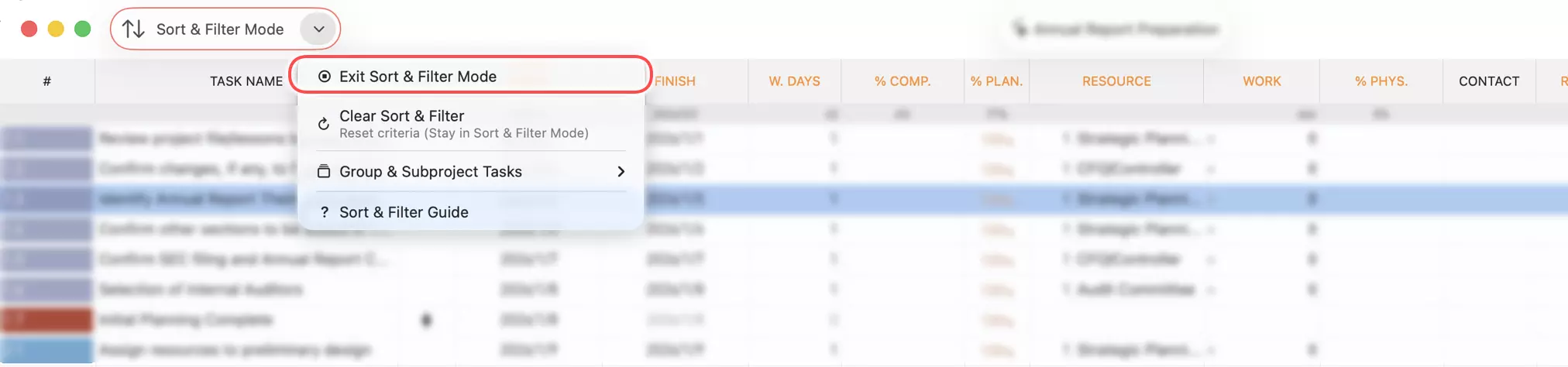
In Sort & Filter Mode, the toolbar's view switcher is replaced by the mode button.

On Mac
- Click the button icon: Exits immediately.
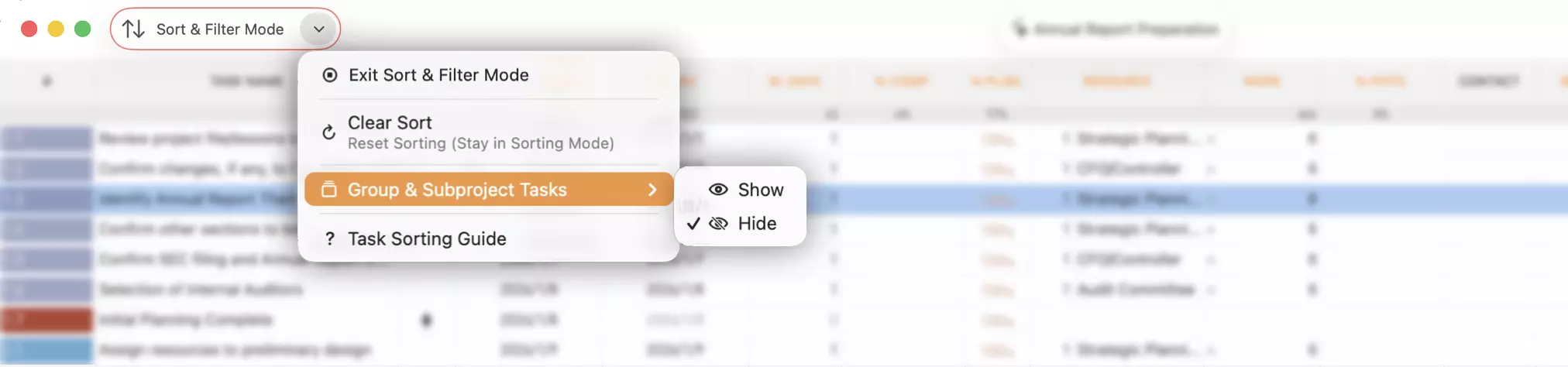
- Click the arrow: Opens a menu to exit or toggle visibility for group/subproject tasks.
On iOS
- Tap the button: Opens a menu to exit or toggle visibility for group/subproject tasks.
Defining Criteria
-
Active Headers: In this mode, sortable/filterable column headers turn orange.
-
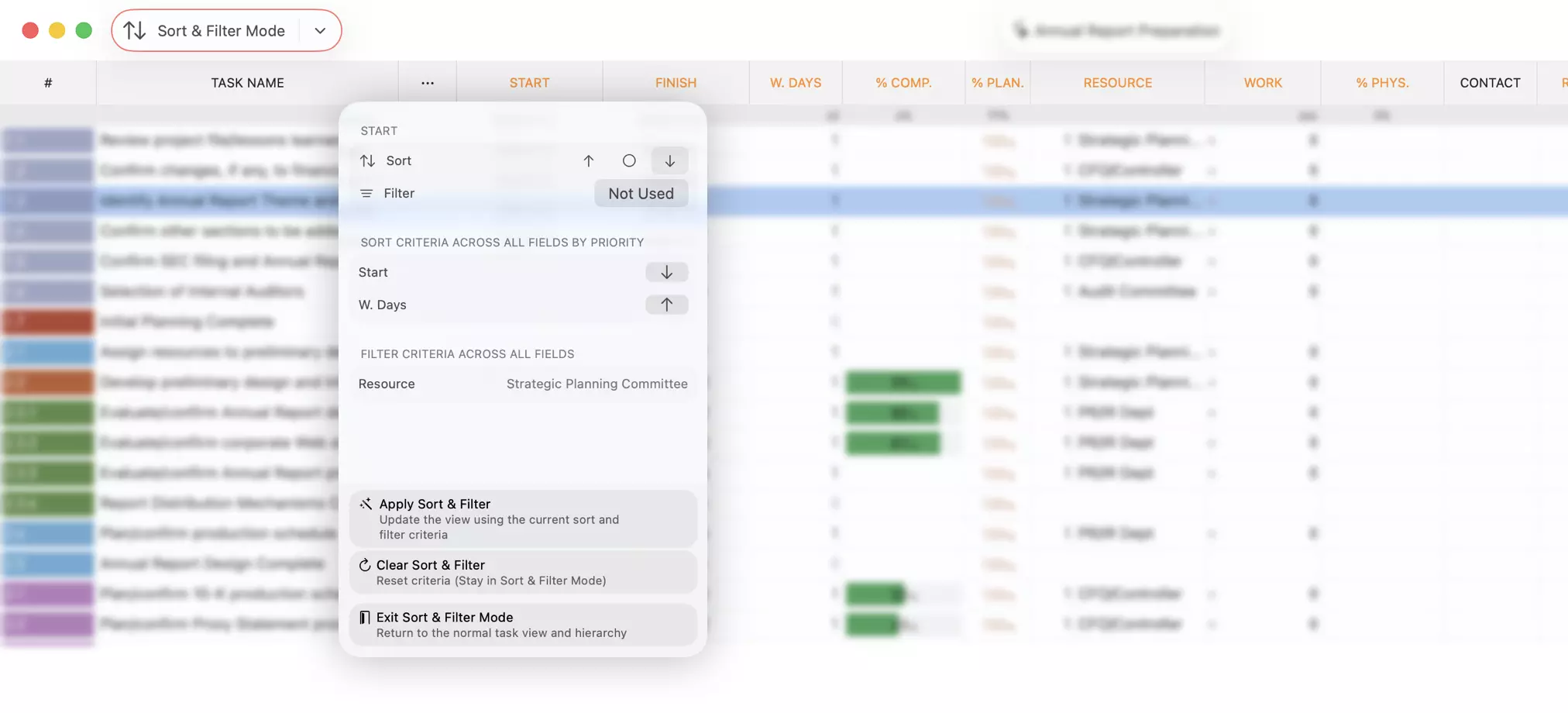
Set Criteria: Tap a header to open its menu.
- Sorting: Choose Ascending, Descending, or None.
- Filtering: Select the desired filter condition.
-
Multi-Column Sorting: You can sort by multiple columns. The order in which you select them determines their priority.
-
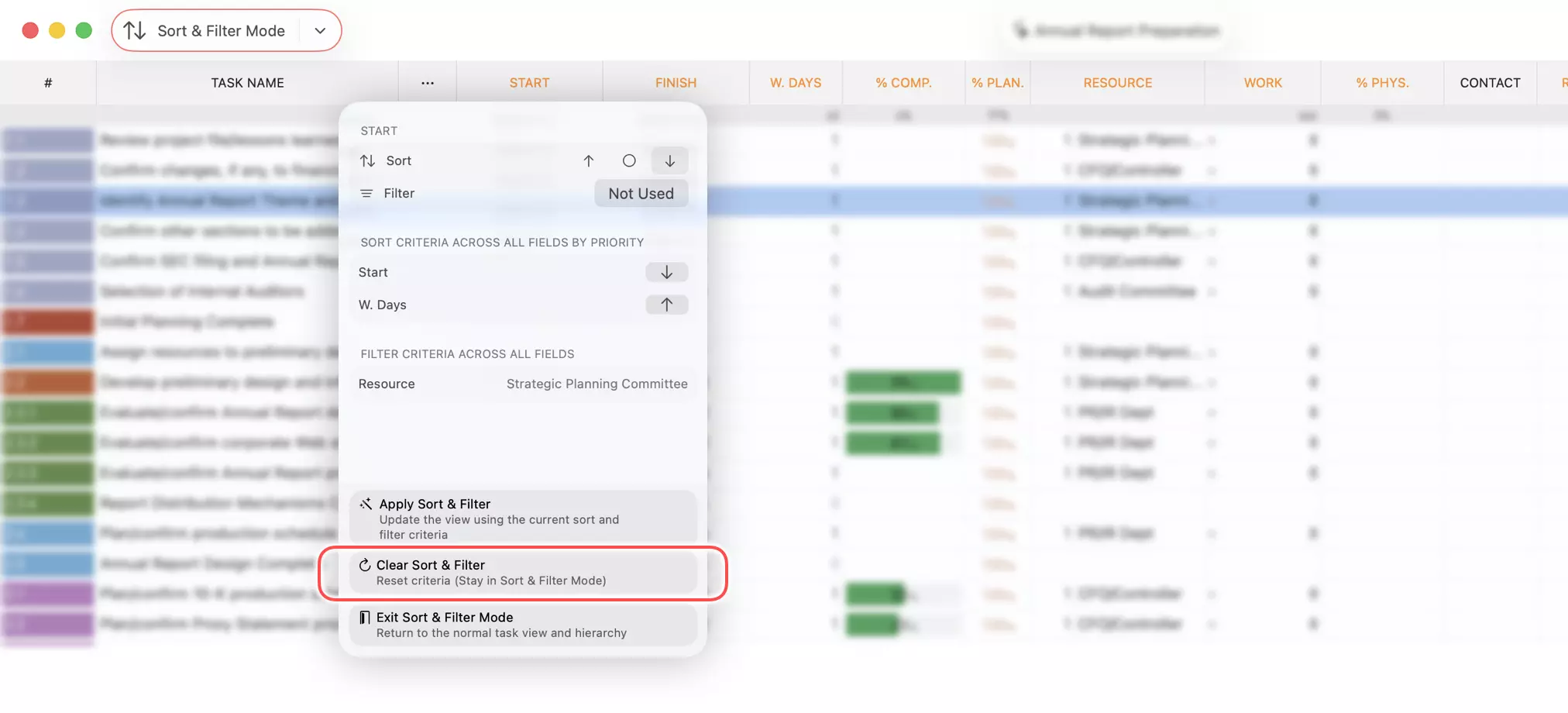
Reset: Use the Reset button in the column menu to clear all criteria.
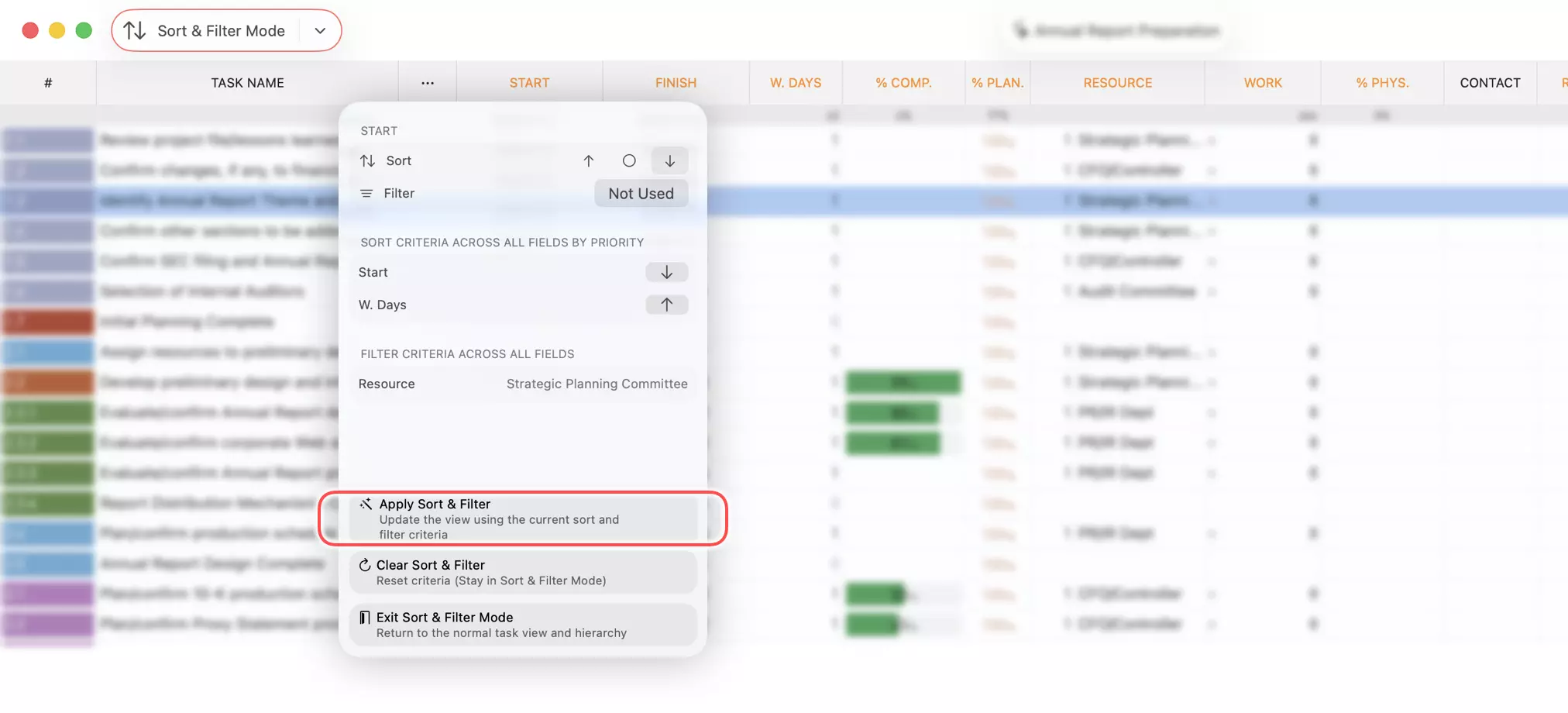
Applying Changes
Editing cell values in this mode does not automatically re-sort or re-filter the list. This prevents rows from jumping unexpectedly while you work.
To refresh the view after making changes, tap any active column header and select Apply Sorting.
Task Visibility
What's Displayed
Sort & Filter mode shows a flat list that differs from normal mode:
- Group and subproject tasks are hidden by default.
- Tasks inside folded groups remain visible.
Show or Hide Group and Subproject Tasks
Tap the Sort & Filter mode button on the toolbar (on Mac, tap the arrow) to open a menu with the option to show or hide group and subproject tasks.
Notes
List vs. Tree
Projects are stored as a tree. In regular mode, the Table, Gantt, Tree, and Column views all reflect that hierarchy. In Sort & Filter Mode, the Table view switches to a flat list in a custom order, so it no longer represents the actual tree structure.
Sort & Filter Mode is not intended for regular task creation or complex updates. For heavy data operations, export to CSV and use Microsoft Excel instead.
Operations Limitation
The sorting view does not show live hierarchy changes. Tree-impacting actions would alter the real structure, but the flattened list would not reveal those changes:
- You could take an action you meant (or did not mean) to perform, yet the UI would not show the new parent/child or sequence relationship, leading to confusion.
- If you make an unintended change, you might not realize it because the list view hides the hierarchical impact.
To prevent this mismatch, hierarchy-altering actions are disabled in Sort & Filter Mode.
Hierarchy-related actions (add task, reorder, change level, delete, etc.) are blocked so the flattened view cannot mask structural changes or accidental edits.