Project Scheduling Software for iPad and Mac

Quick Look:
- Project scheduling is different from task tracking — it involves durations, dependencies, critical path, and timeline control
- QuickPlanX is native project scheduling software for iPad and Mac, with the same schedule on both devices
- iPad is a natural surface for schedule review, field updates, and planning conversations; Mac handles the heavy editing
- iCloud CloudKit sync keeps the current schedule available on both devices without manual file management
- One subscription covers Mac, iPad, and iPhone
Project scheduling software is a specific category. It sits above task management and below the heavyweight enterprise systems that large construction or aerospace programs use. Real project scheduling software tracks not just what needs to get done, but when each task happens, in what sequence, how long each task takes, and what the consequences are when the schedule shifts.
This article explains what project scheduling software needs to do well, why the iPad + Mac combination is a productive environment for scheduling work, and how QuickPlanX fits that pattern.
Project Scheduling vs. Task Tracking
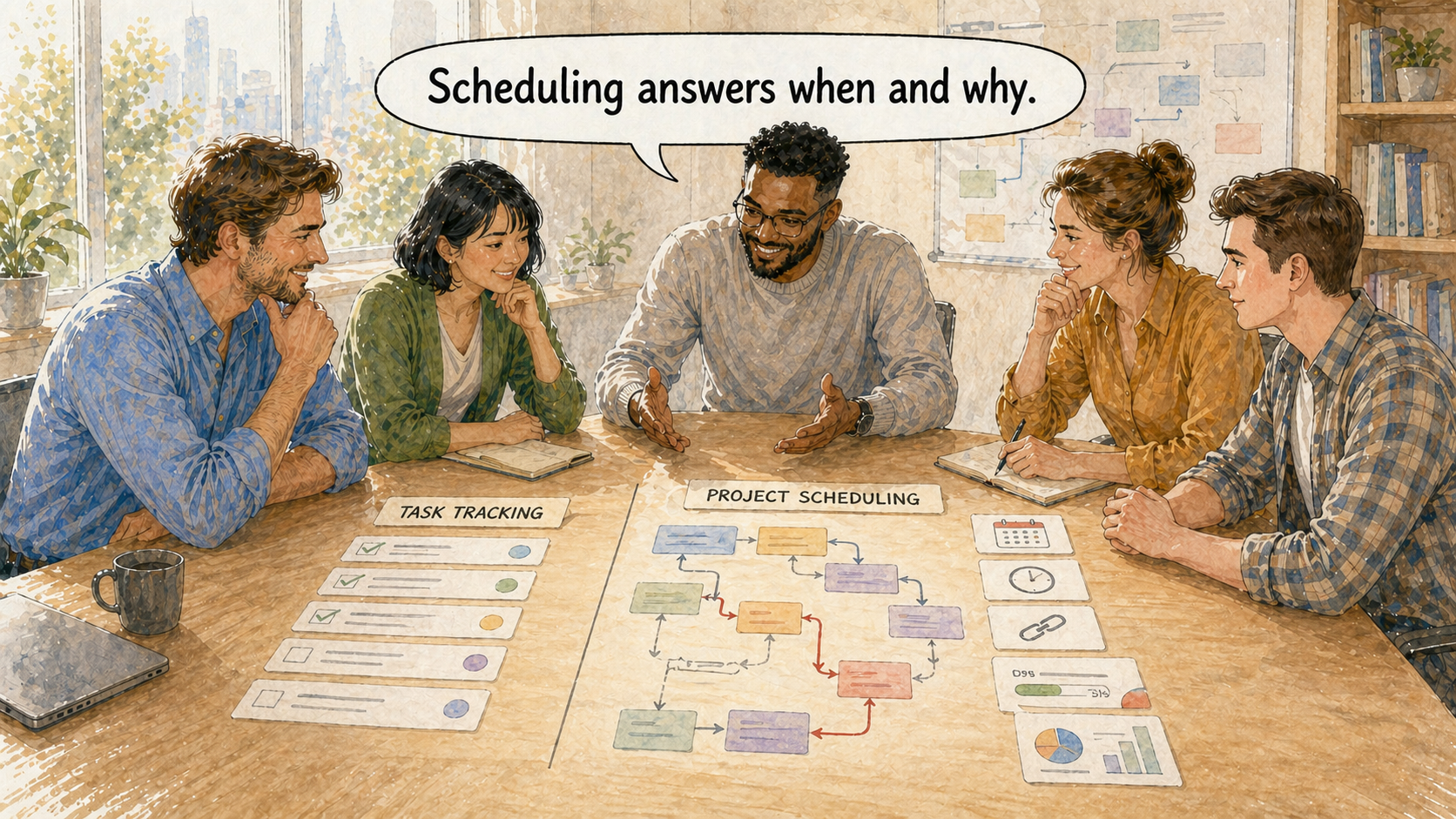
The difference matters for tool selection. Task tracking systems — and most project management apps — answer "what needs to get done and who is responsible?" Project scheduling software answers a different and more demanding set of questions:
- When does each task happen? Scheduling requires dates, durations, and calendar awareness (working days, holidays, time zones).
- In what order must tasks occur? Dependencies define which tasks must complete before others can begin. A scheduling tool records these constraints and reflects them in the timeline.
- What is the critical path? The sequence of dependent tasks that determines the project's earliest possible end date. Any delay on a critical-path task is a delay to the whole project.
- Where is the schedule slipping? Baseline comparison — the original plan vs. the current state — shows where the project is ahead, on track, or falling behind.
- How is progress distributed? Resource reports, S-Curve charts, and progress tracking answer this question from the schedule data.
If the tool you are evaluating cannot answer all of these questions, it is a task tracker or a visual timeline — not scheduling software.
What iPad and Mac Each Bring to Project Scheduling
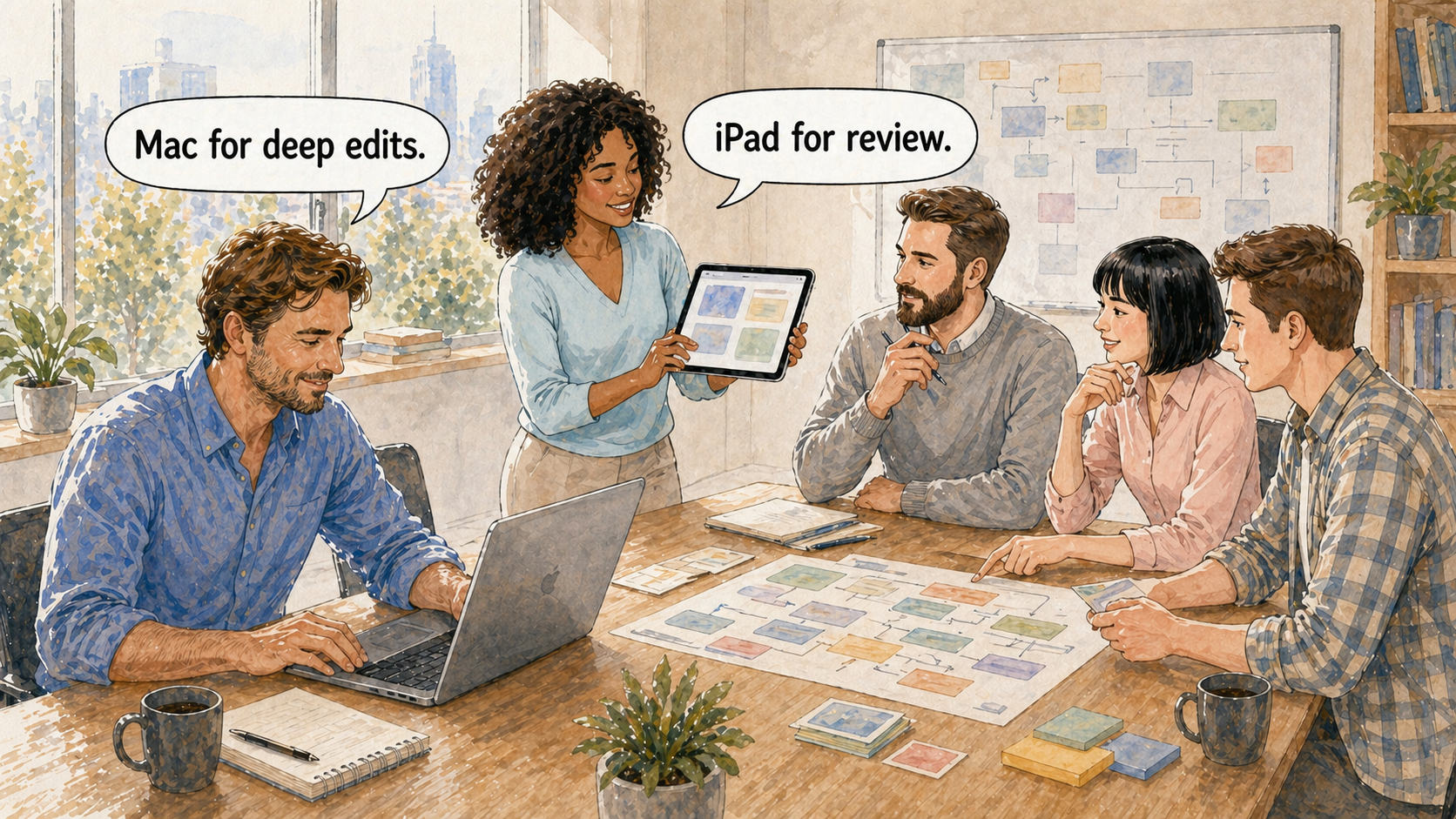
Project scheduling does not happen in a single sitting on a single device. Understanding what each platform does well shapes a realistic expectation for cross-device scheduling software.
Mac: The Primary Scheduling Surface
Mac is the right environment for building and maintaining complex project schedules. The larger screen allows dense information — a wide Gantt chart with dozens of tasks, date columns, resource columns, and dependency arrows all visible at once. The keyboard makes repetitive operations fast: date shifts, duration changes, task insertion, dependency linking, and duplication all have keyboard shortcuts that eliminate extra clicks. The pointer provides precise interaction with Gantt bars and task hierarchies that would be slower with touch alone.
On QuickPlanX for Mac:
- Use the Gantt chart with Fn + drag to link tasks without leaving the schedule view
- Use Table View for spreadsheet-style editing across many task fields
- Use keyboard shortcuts to shift dates, change durations, duplicate branches, and navigate the schedule
- Use multi-window layouts to keep the Gantt and Table views side by side
- Customize the toolbar to bring your most-used actions one click away
The Fast Project Planning page covers the Mac editing workflows that make schedule maintenance practical rather than expensive.
iPad: The Mobile Scheduling Surface
iPad brings the schedule into situations where a Mac is impractical: on-site visits, client meetings, planning conversations in a conference room, or schedule reviews during a commute. The touch interface and flexible posture — held in one hand, propped on a table, or connected to a keyboard — make iPad a natural review and update surface.
On QuickPlanX for iPad:
- Open any project and see the current, synced schedule immediately — no file transfer needed
- Touch and gesture interactions on the Gantt chart for task selection, scrolling, and navigation
- The action bar surfaces the most relevant task operations without a menu
- Update progress, adjust dates, add notes, and check dependencies in the Inspector
- Review reports and share them directly from the iPad
iPad works best as a complement to Mac for scheduling: Mac for building and editing, iPad for reviewing, updating, and communicating the schedule. The universal app page explains how this division of labor works in practice.
The Sync That Makes iPad + Mac Work

The iPad + Mac scheduling combination is only practical if the schedule is always the same on both devices. Otherwise, the project manager is managing files — exporting, transferring, reconciling versions — rather than managing the project.
QuickPlanX uses Apple's iCloud CloudKit to synchronize project data automatically across Mac, iPad, and iPhone. The sync happens in the background without user intervention: a schedule built on Mac is available on iPad when you open the app. An update made on iPad from a client meeting is reflected on Mac when you return to the desk.
CloudKit stores project data as structured database records, not as files you need to move. This means sync can handle structured project changes — adding tasks, adjusting dependencies, updating progress — without requiring you to manage which device has the "latest" file.
For more detail on how the sync model works, see Keep Every Device in Sync and the iCloud Sync overview.
The Scheduling Features That Matter Most
When evaluating project scheduling software for iPad and Mac, focus on the capabilities that real scheduling work actually requires:
Task Hierarchy and Summary Rollup
A schedule is not a flat list. Phases contain deliverables, which contain tasks. Summary tasks should roll up dates, durations, and progress from their children automatically. Restructuring the hierarchy — moving a task to a different phase, promoting a task to a summary level — should be easy.
QuickPlanX supports unlimited task hierarchy with Tree View for structural work, and drag-and-drop reorganization across all views.
Gantt Chart with Dependencies
Dependencies connect the schedule logic. A Gantt chart without dependency arrows shows a timeline of guesses. A Gantt chart with dependency arrows shows a real schedule — one where the software can tell you what is now late when a predecessor task slips.
QuickPlanX links tasks directly in the Gantt chart. The arrows are live: they reflect the current state of the schedule and help identify where delay would propagate.
Critical Path
The critical path is the chain of dependent tasks that cannot be delayed without moving the project's end date. Good scheduling software highlights the critical path so the project manager knows where the schedule has no slack and where it does.
Baseline and Progress Tracking
Scheduling is ongoing work. A baseline records the original plan; comparing actual progress against the baseline shows where the project has drifted. QuickPlanX supports baseline storage and visual comparison in the Gantt chart, so the schedule remains a living record rather than a static diagram.
Reports for Communication
Scheduling software needs to produce outputs that communicate the schedule to people who are not inside the app. PDF for meeting documents, image for presentations, CSV for data analysis, S-Curve chart for progress review, and milestones report for checkpoint-focused conversations.
See Project Reports for the full list of export formats.
Import and Export: Connecting to the Wider World
Project schedules often originate outside the app, and they often need to reach tools that other people use.
QuickPlanX supports:
- Microsoft Project XML import and export — exchange schedules with colleagues or clients who work in MS Project
- Spreadsheet copy and paste — bring existing task lists and data tables from Excel, Numbers, or Google Sheets directly into the Table View
- OPML import from mind map apps — turn early structural outlines into a project hierarchy ready for scheduling
- iCalendar (ICS) export — send project task dates to Apple Calendar, Google Calendar, or Outlook
See Connect Your Planning Workflow for the full picture.
Who Project Scheduling Software for iPad and Mac Is For
QuickPlanX is a strong fit for project schedulers who:
- Work primarily on Apple devices and want scheduling software that feels native on both Mac and iPad
- Manage medium-complexity projects: too structured for a to-do list, too focused to warrant an enterprise system
- Move between devices during the day and need the schedule to stay current automatically
- Collaborate occasionally with Microsoft Project users and need to exchange schedule files
- Want a scheduling environment that is fast enough to keep updated as reality changes
If your current situation involves managing project schedules in a mix of spreadsheets, to-do apps, or calendar tools — and you want purpose-built project scheduling software that works naturally on Mac and iPad — QuickPlanX is built for that work.
Ready to try QuickPlanX?

Related articles: Easy and Smart Project Planning · Plan at Remarkable Speed · Keep Every Device in Sync · One App for iPhone, iPad, and Mac